Battery and Hardware Care for BlackBerry Z10 Q10 Torch
By adminDev2
November 20, 2026
Field Notes
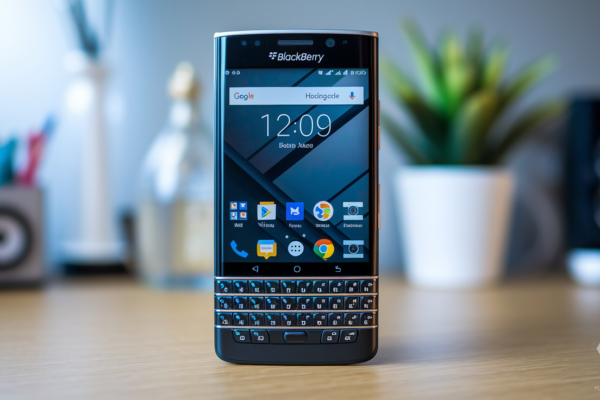
Think your BlackBerry Z10, Q10, or Torch is past help?
These discontinued phones can keep running for years if you treat their batteries and hardware right.
This quick guide tells you what to check first: read the battery label and model code, watch charge habits (aim for 20-80%), inspect for swelling or heat, clean ports, and test displays and keyboards.
You’ll also get clear next steps, when to back up, when to power off, and when to seek a replacement part.
BlackBerry Device Care and Maintenance Reference
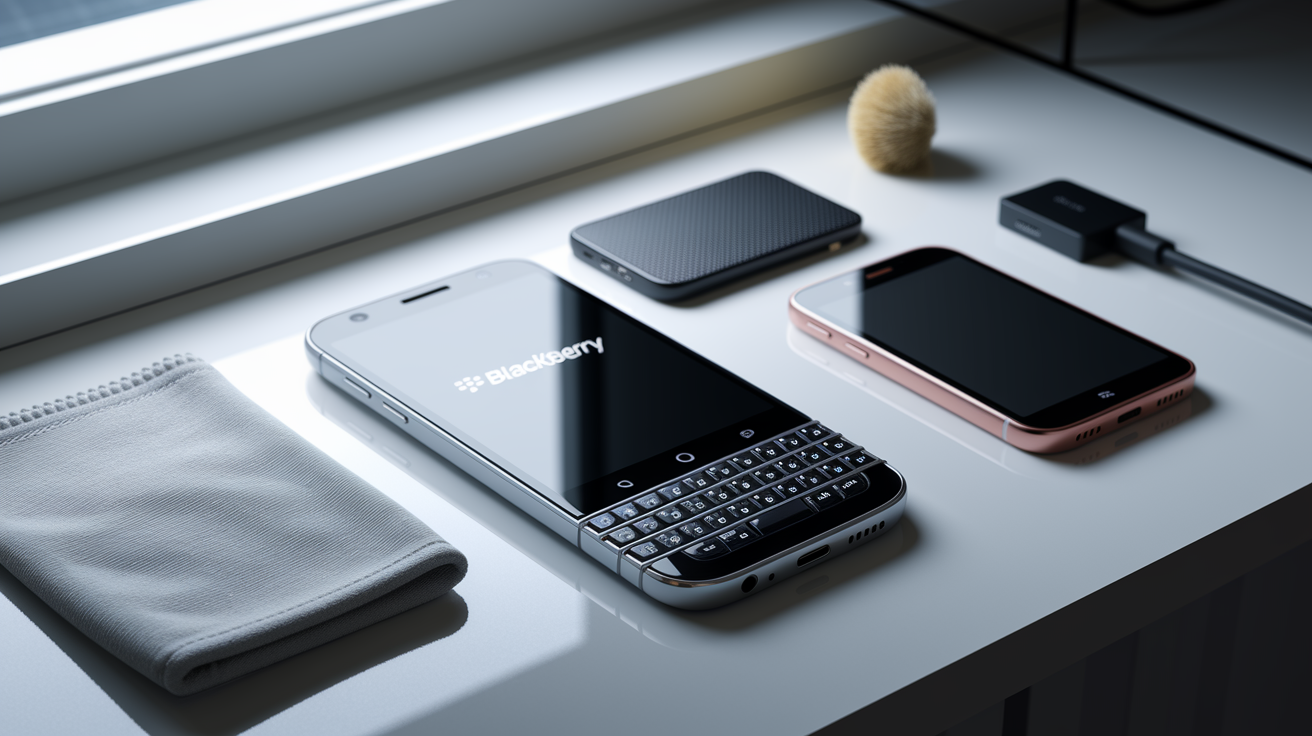
Quick Care Essentials for BlackBerry Z10, Q10, and Torch Devices
These discontinued phones can keep running for years, but it takes some attention. Battery condition, temperature, ports, displays, keyboards, general behavior, all of it matters. That said, before you order any part, check the exact model number and the printed battery label inside the device. General specs for a “Z10” or “Torch” won’t cut it. The label is the source of truth.
Here’s an immediate checklist that applies across the Z10, Q10, and Torch families:
- Inspect the battery and rear cover for signs of swelling.
- Keep routine charging near 20 to 80% where practical.
- Use a sound charger and undamaged USB cable.
- Lower display brightness to 25 to 40%.
- Set the screen timeout to 15 to 30 seconds.
- Deactivate Wi-Fi, Bluetooth, GPS, and mobile data when you’re not using them.
- Remove loose surface debris with a dry microfiber cloth or soft non-metal brush.
- Back up data before repairs, resets, or hardware testing.
If a device is overheating, leaking, swollen, physically damaged, or shutting down repeatedly, power it off right away. Don’t try to troubleshoot a hot or swollen battery while it’s still in the phone.
The hardware how-to section further down covers battery removal, port cleaning, hazard response, and post-repair testing in full detail. This section is just the fast version. The stuff you check before you touch a screwdriver.
BlackBerry Z10 Battery Maintenance and Touchscreen Care
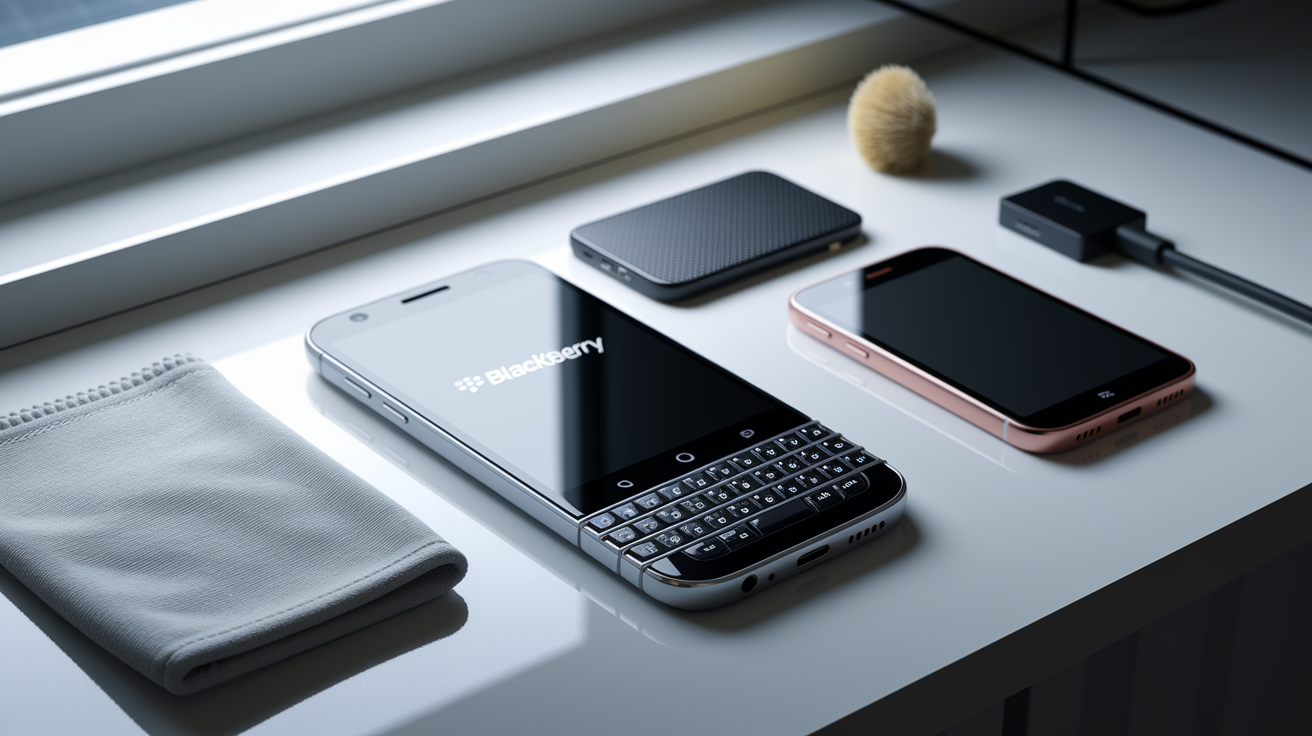
The Z10 typically ships with an approximately 1,800 mAh removable Li-ion battery, but don’t shop for a replacement based on that number alone. Pop the back cover and read the actual battery label or model code printed on the cell. Z10 variants and regional battery stock can differ, and a mismatched part can cause fit or charging issues down the line. If measured capacity drops below roughly 1,440 mAh (that’s about 80% of nominal capacity) it’s a reasonable point to start planning a replacement rather than waiting for a full failure.
Because the Z10 is touch only, with no physical keyboard to fall back on, digitizer condition and display wake behavior matter more here than on the Q10 or Torch. Watch for a few diagnostic signs: shorter runtime than expected, shutdowns that happen right around 20% instead of lower, charging that won’t start or stops early, a screen that wakes up on its own repeatedly, unusual heat during normal use, or a battery that feels loose or shifts inside its bay. Any of these point toward either a battery nearing end of life or a hardware fault worth isolating.
It’s worth separating simple surface grime from an actual digitizer or display assembly problem. A dirty or oily screen can cause missed taps, but that’s fixable with a clean microfiber cloth. Phantom touches with nothing touching the screen, dead zones that stay in the same spot no matter what you do, dead pixels, visible separation between the glass and frame, or unresponsiveness that persists after a restart, these are hardware symptoms, not cleaning problems.
Run through these six checks on a Z10 showing battery or display issues:
- Compare measured capacity with the approximate 1,440 mAh planning threshold.
- Review which apps or notifications wake the display repeatedly.
- Test the complete digitizer grid for fixed dead areas.
- Check for phantom touches without contacting the screen.
- Assess the microUSB port for looseness or intermittent charging.
- Confirm that the battery sits securely without movement or pressure.
A labeled photo showing the Z10 battery bay, the battery label itself, the microUSB port, the digitizer area, and the display assembly edge makes diagnosis a lot easier. Whether you’re asking for help in a forum or just keeping records for yourself. For the actual cleaning, battery swap, and reassembly steps, head to the hardware how-to section later in this guide.
BlackBerry Q10 Battery Care and Physical Keyboard Upkeep
(((alt-img3)))
The Q10 launched in January 2013 and uses the NX-1 battery, which you’ll also see labeled as BAT-52961-003 or ACC-53785-201. These are all names for the same part, so don’t let different listings confuse you. The OEM spec is 3.8 V nominal, 4.35 V maximum, and 2,100 mAh, a notably higher voltage ceiling than a lot of other legacy BlackBerry cells. The NX-1 also has an integrated fuel gauge and temperature sensor built into its small PCB, which is part of why batteries from other BlackBerry models should never be forced into a Q10, even if the physical size looks close.
Dimensions matter more here than people expect. The cell measures approximately 52.5 × 39.5 × 5.2 mm, and even 0.3 mm of extra thickness can prevent the rear cover from closing properly. Advertised capacity doesn’t override any of this. A battery claiming higher mAh than stock is still the wrong battery if the code, voltage, dimensions, or connector placement don’t match.
Before trusting a replacement, run through this checklist:
- Confirm NX-1, BAT-52961-003, or ACC-53785-201 identification.
- Check for 3.8 V nominal and 4.35 V maximum markings.
- Compare replacement dimensions with approximately 52.5 × 39.5 × 5.2 mm.
- Reject any battery that prevents the rear cover from closing naturally.
- Examine contacts for contamination, corrosion, or uneven alignment.
- Test every keyboard row for missed, repeated, or sticky inputs.
- Test the touchscreen for fixed dead zones and inaccurate input.
Common replacement indicators include shutdown below about 20%, only getting 4 to 6 hours out of light use, visible swelling, or a “Battery Not Recognized” message. But if you install a new battery and see a rapid percentage drop right out of the gate, that’s often
Final Words
Start by watching battery condition, temperature, ports, displays, keyboards, and device behaviour — routine checks keep these discontinued phones useful.
This guide covered quick-care essentials, Z10 touchscreen and battery checks, Q10 NX-1 identification and keyboard diagnostics, Torch slider and flex-cable warnings, step-by-step repair procedures, compatibility buying tips, and a preventive maintenance schedule.
Follow checklists, match exact model and battery codes, back up before repairs, and power off any device that overheats or swells. When in doubt, seek professional help—maintaining battery and hardware for blackberry z10 q10 torch is practical, safe, and keeps trusted devices in service.
FAQ
Q: Can a BlackBerry Q10 still be used?
A: A BlackBerry Q10 can still be used — the Q10 uses the NX-1 (BAT-52961-003) 2,100 mAh battery; keep the correct battery code, avoid swollen cells, back up data, and check hardware before buying parts.
Q: Can I still use a BlackBerry Z10?
A: A BlackBerry Z10 can still be used — the Z10 typically uses an ≈1,800 mAh removable Li‑ion cell; verify the exact model and battery label, watch for swelling, and follow basic charging and backup care.
Q: How to get old BlackBerry to turn on?
A: To get an old BlackBerry to turn on, charge it with a known-good 5 V, 1–1.5 A charger and sound cable for 30 minutes; inspect and reseat or replace an exact-match battery, clean the port, then power on.