How to Backup and Restore a BlackBerry Safely
By Aaron Watson
November 23, 2026
Field Notes
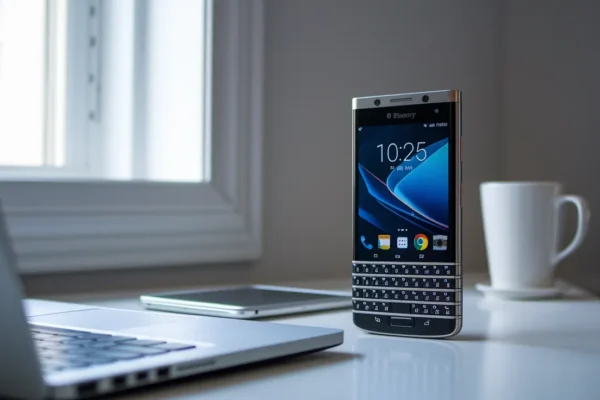
Think a security update can’t erase your photos? Think again.
Before you tap install on a BlackBerry 10, a BlackBerry OS 7 device, or an Android-based BlackBerry, stop and back up first.
This guide shows exactly how to create and verify backups with BlackBerry Link and BlackBerry Desktop Software, use Android account sync, and make extra copies of media.
You’ll learn which backup method fits your model, how long each step takes, when an update is safe to run, and how to restore if something goes wrong.
Back up before updating. That’s the rule.
Before You Start: The BlackBerry Security Update Stop/Go Checklist

Don’t touch that update screen yet. Not until your backup’s finished and passed every check on the list below. That’s the rule this whole guide is built around, and skipping it is the fastest way to turn a routine patch into a lost photo library.
Before you get started, gather what you’ll need. A reliable USB cable if your method calls for one, a supported computer, your BlackBerry ID or account credentials, any backup password you’ve set, a stable network connection, and enough free storage on both the device and the backup destination.
Here’s the sequence, start to finish:
- Identify your exact BlackBerry model and operating system.
- Route to the compatible method: BlackBerry Link, BlackBerry Desktop Software, Android account sync, or supplemental cloud and media copying.
- Create a current backup of your supported device data.
- Complete the verification checklist and confirm it finished successfully.
- Install the security update only after every critical check passes.
- Inspect the updated device, and use the restoration steps only if data’s missing, the device was reset, or a software reload happened.
Backups usually run 5 to 15 minutes for small system-only jobs, 15 to 30 minutes for medium ones, and 30 to 60 minutes or more when photos and video get added in. Restoration typically takes 5 to 30 minutes, though large data sets or apps that need reinstalling can push that past an hour.
Why BlackBerry Security Updates Can Put Local Data at Risk
(((alt-img2)))
Security patches are built to preserve your data. That’s the whole point of them. But “designed to” and “guaranteed to” aren’t the same thing, and the installation itself carries risk that has nothing to do with how well the patch was written.
- An interrupted installation, caused by a dropped connection, a drained battery, or a reboot at the wrong moment.
- An incompatible update or software state, where the device and the patch just don’t line up.
- Damaged local data that existed before the update even started.
- A required software reload or factory reset to recover a device stuck mid-update.
There’s an important difference between data that lives in the cloud and data that only lives on your phone. Contacts and calendar items synced through an account will usually reappear once you sign back in. But messages, saved files, downloaded media, and anything stored solely on local memory or a media card won’t come back that way. If it’s only ever existed on the device, the update process is the moment it’s most exposed.
That’s also why a failed update sometimes ends with a software reload or a full factory reset as the only way forward. Neither one preserves local data on its own. For the battery, storage, network, model, and compatibility checks you need before updating, check the verification section later in this guide instead of relying on assumptions here.
Back Up a BlackBerry 10 Device With BlackBerry Link
(((alt-img3)))
BlackBerry Link is the desktop companion app for BlackBerry 10 devices, including the Z30, Z10, Q10, and Passport. Running legacy BlackBerry OS 7 or earlier? This isn’t your tool. Skip ahead to the BlackBerry Desktop Software section instead.
Connect the BlackBerry 10 Device
Getting the device recognized is the first hurdle, and it’s usually quick if your cable and ports are in decent shape.
- Install BlackBerry Link on your computer, or open it if it’s already there.
- Connect your BlackBerry 10 device using a reliable USB cable, or pair it over a supported Wi-Fi connection.
- Wait for Link to detect and recognize the device. This can take a few seconds to a minute.
- Select the correct device if Link shows more than one connected BlackBerry.
Create the BlackBerry Link Backup
Once the device shows up in Link, the backup itself is pretty straightforward.
- Open the backup function within BlackBerry Link.
- Choose between a complete backup or a custom one.
- If you’re doing a custom backup, select the data categories you need preserved.
- Start the backup process.
- Keep the USB or Wi-Fi connection active and uninterrupted while it runs.
- Wait for Link to show a completion message before disconnecting.
Depending on what your device supports, selectable categories typically include contacts, calendars, messages, accounts and settings, application information, Remember notes and tasks, and media like photos and videos.
For the full rundown on BlackBerry Z30 backup and BlackBerry Protect features, BlackBerry’s own Z30 BlackBerry Protect and Link support page is a solid reference.
If you keep photos or files on a media card, or sync accounts through the cloud, make supplemental copies like we describe later in this guide. Then run through the verification section before installing anything.
Use BlackBerry Desktop Software for BlackBerry OS 7 and Earlier
(((alt-img4)))
If you’re on a Bold 9930, Bold 9900, BlackBerry 9720, or any other device running BlackBerry OS 7 or earlier, BlackBerry Desktop Software is your backup tool, not BlackBerry Link. The two apps aren’t interchangeable, and trying to use the wrong one just wastes your time.
Create a Full or Selective Desktop Software Backup
- Install the appropriate version of BlackBerry Deskt
Final Words
Don’t start the security update until your backup has completed and passed the verification checks.
Identify your exact BlackBerry model and OS, use the compatible tool (BlackBerry Link, Desktop Software, or Android sync), create a current backup, run the verification checklist (logs, sample files, storage, password), then install the patch only when every check passes.
If you followed the steps above, you now know how to backup and restore a BlackBerry before applying a security update, and you can update with confidence.
FAQ
Q: Can I still use BlackBerry in 2026?
A: You can still use a BlackBerry in 2026. Continued usability depends on model: legacy BlackBerry OS and BlackBerry 10 lack most official updates, while Android-based models (Priv, KEYone) keep Android services and vendor support.
Q: How do I restore my backup files?
A: Restoring backup files requires the matching tool for your device: BlackBerry Link for BlackBerry 10, BlackBerry Desktop Software for OS7 and earlier, or cloud/account restore for Android-based BlackBerry—connect, pick the backup, and restore.
Q: How to backup Windows 10 before installing Windows 11?
A: To back up Windows 10 before installing Windows 11, create a system image or use File History, copy important folders to an external drive, export browser/app data, and make recovery media before upgrading.
Q: How do I update a backup on my iPhone?
A: To update a backup on your iPhone, connect to Wi‑Fi for iCloud or to a trusted Mac/PC for Finder/iTunes, tap or choose Back Up Now, wait for completion, and confirm the new backup date and size in Settings.