How to Verify BlackBerry OS Update Digital Signatures Safely
By 82yoon
November 22, 2026
Field Notes
Would you install a BlackBerry OS update without checking its digital signature?
Too many releases look legit but are corrupted, the wrong build for your device, or not signed by the publisher.
This guide walks you through safe verification for legacy BlackBerry OS, BlackBerry 10, PlayBook, OTA packages, and autoloader bundles.
You’ll learn which tools to use (SHA-256, OpenSSL, GnuPG), what to inspect (hash, detached or embedded signature, certificate chain), and the exact stop conditions.
By the end you’ll know when an update is safe to install and when to back away.
BlackBerry OS Update Authentication at a Glance
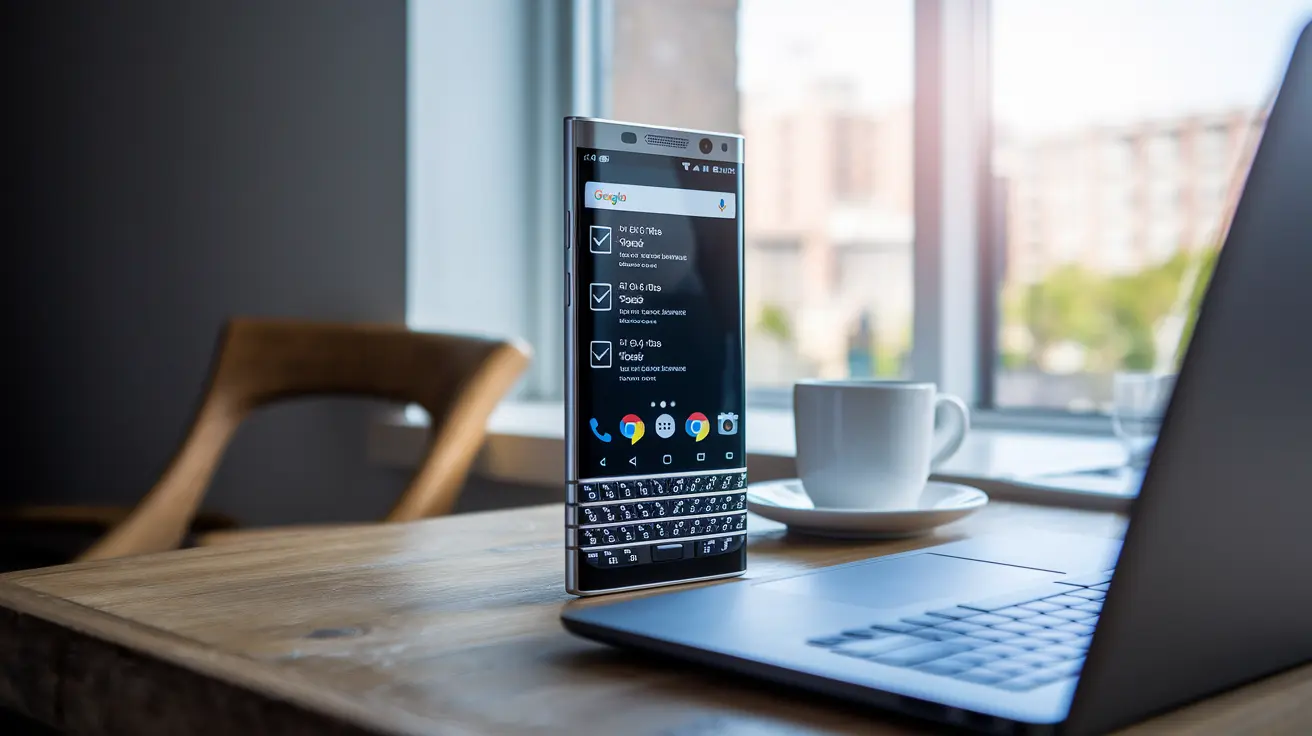
Package formats and the verification artifacts they expose aren’t the same across the BlackBerry lineup. Legacy BlackBerry OS builds, BlackBerry 10 updates, PlayBook packages, OTA deliveries, and autoloader bundles each handle signing differently. Not every package gives you a standalone signature file that OpenSSL or GnuPG can check directly, and that gap matters when you’re deciding how much confidence to place in a download.
Before you start, it helps to know what tools you’ll actually need. Here’s the short list:
- A SHA-256 utility, including
sha256sumon Linux orcertutilon Windows. - OpenSSL for compatible detached signatures and X.509 certificates.
- GnuPG for OpenPGP detached signatures.
- A package-aware certificate tool for proprietary or embedded signing data.
With those in hand, the verification workflow breaks down into seven steps:
- Confirm the device model, OS version, build number, carrier context, and package type.
- Download through a recognised vendor, carrier, enterprise, or archived official channel.
- Preserve the original package and calculate its SHA-256 hash.
- Compare the hash with a value obtained independently from the trusted publisher.
- Verify a detached or embedded signature using the correct authenticated key and format-compatible tool.
- Inspect the signer, certificate chain, validity period, and revocation status where supported.
- Install only if every applicable result succeeds. Stop if publisher authentication is unavailable or any required result fails.
One quick distinction worth making early. Desktop package verification, the kind covered above, is a different animal from the Bold 9650’s built-in security self-test. That BlackBerry Bold 9650 security-software verification guide walks through Options > Security > Security Status Information > Verify Security Software. That test runs automatically after a restart and checks the installed security software on the device itself. It doesn’t tell you where a firmware package came from before you load it.
What a BlackBerry OS Update Digital Signature Proves
(((alt-img2)))
A digital signature starts with a cryptographic hash of the package data. A private signing key then locks that hash into something that can’t be forged without the key. Verification works in reverse, using the matching public key. You never need the private key, and you shouldn’t expect to see one anywhere in this process. If the public key checks out against the signed data, you know the bytes you have match what was originally signed.
Here’s where BlackBerry gets a little different from a typical open-source release. Some firmware packages use embedded signatures or rely on platform-enforced checks built into the bootloader, rather than giving you a separate .sig file you can point OpenSSL or GnuPG at from your desktop. That changes which tools apply and what you can realistically confirm before installation.
What Each Result Proves
- Matching SHA-256 hash: The local file bytes match the authenticated reference value.
- Valid digital signature: The checked bytes match the signed data and the signer controlled the corresponding private key.
- Valid certificate chain: The signing certificate connects to an independently trusted root or trust anchor.
- Successful platform enforcement: The device or official updater accepted the signed components under its security policy.
The sections ahead on checksums and certificates point back to this box rather than re-explaining the difference between integrity and authenticity every time. Worth bookmarking if you’re working through the whole verification process.
What SHA-256 Checksums Reveal About a BlackBerry OS Update
(((alt-img3)))
A SHA-256 hash is deterministic. Run the same file through the algorithm twice and you get the same output every time. Change even one byte in the file, and the output changes completely. That’s what makes it useful for catching corrupted downloads or files that have been altered, intentionally or not.
The command is simple: sha256sum update-file.bar (the same approach works for an .img file or another vendor bundle). The result has to match the publisher’s stated value exactly, character for character. A mismatch can mean the download got corrupted partway through, you grabbed the wrong build for your device, or the file was modified somewhere along the way. You’ll sometimes see MD5 checksums in older archives, but stick with SHA-256 when an authenticated SHA-256 reference is available. It’s the stronger algorithm, and matching MD5 isn’t the same assurance. As covered in the box above, a matching checksum confirms integrity, not who published the file.
Before trusting any checksum comparison, confirm:
- The complete filename and extension.
- The exact byte size.
- The stated BlackBerry device and OS build.
- The complete SHA-256 value with no omitted characters.
- The independent source of the expected hash.
On Linux:
sha256sum update-file.bar
On Windows:
certutil -hashfile update-file.bar SHA256
Expected outputs, screenshots, and what to do about a mismatch get covered in the hands-on procedure further down.
What the Signing Certificate Chain Means for BlackBerry Firmware
(((alt-img4)))
A signature tells you the bytes match what was signed. A certificate tells you something about who did the signing, assuming the certificate itself checks out. That’s the next layer.
Inspecting an X.509 certificate with OpenSSL reveals several fields worth checking:
- Subject
- Issuer
- Serial number
- SHA-256 fingerprint
Final Words
Jump right in: this post laid out package differences across BlackBerry OS, BlackBerry 10, PlayBook, OTA, and autoloader releases, listed tools (sha256sum, certutil, OpenSSL, GnuPG, package-aware inspectors), and walked through the seven verification steps you should run before flashing.
We clarified what a matching SHA-256 hash proves versus a valid digital signature and certificate chain, showed the Bold 9650 on-device Security Status test, and gave an install/reject/investigate decision checklist.
Follow these steps and you’ll know how to verify the digital signature of a BlackBerry OS update and update with confidence.
FAQ
Q: Can I still use a BlackBerry in 2026?
A: You can still use a BlackBerry in 2026, but usability depends on the model and network: older 3G-era devices may lose cellular or app support, so check your device model, carrier policies, and OS compatibility first.
Q: How to check if BlackBerry is original or fake?
A: To check if a BlackBerry is original or fake, verify the model, serial and IMEI against the box or carrier database; inspect the boot logo, OS build number, hardware quality, and seller reputation before buying or installing software.
Q: How to update BlackBerry phone?
A: To update a BlackBerry phone, identify the exact model and OS (BlackBerry OS, BlackBerry 10, or Android), back up your data, then use Settings > Software Updates or the vendor/carrier official updater; follow verified autoloader guidance if applicable.
Q: How to check BlackBerry imei number?
A: To check a BlackBerry IMEI number, dial *#06# or go to Settings > About (or Status) to view IMEI; you can also find it on the original box, under the battery or SIM tray, or in your carrier account.