Troubleshooting Failed BlackBerry Security Update Installations Made Easy
By adminDev2
November 23, 2026
Field Notes
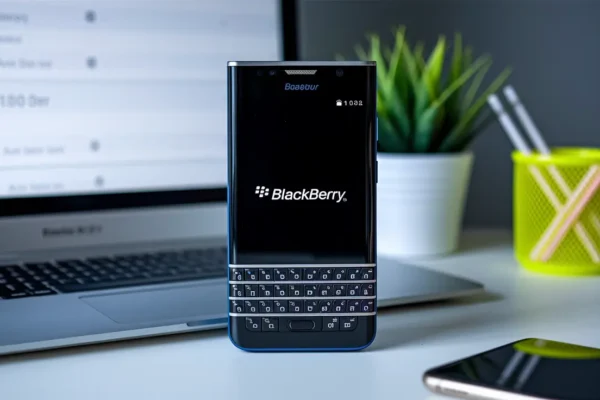
Think a failed security update means your BlackBerry is bricked? Not usually.
Start with device-first checks: confirm the exact model, OS (BlackBerry 10 or Android-based Priv/KEYone/Motion), and build numbers before you do anything else.
This guide gives eight quick checks you can run in order, and most installs fix themselves by step 5.
You’ll learn what to verify (storage, clock, power), how to isolate network and TLS (secure transport) problems, and when to stop retrying and collect logs or try a manual install.
Follow these steps before you call support.
Try These Eight Quick Checks in Order
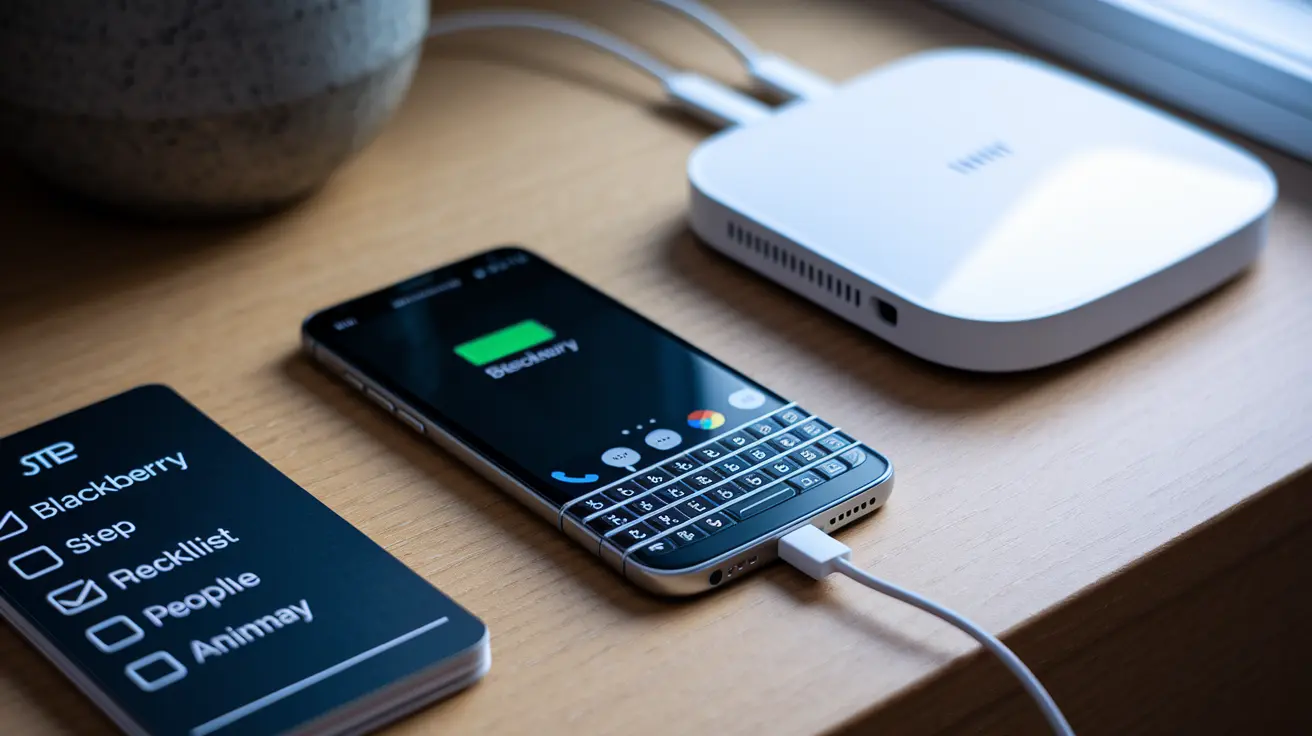
Before you start digging through logs or poking around enterprise consoles, run through this list first. Most failed installs sort themselves out somewhere in the first five steps.
- Confirm compatibility first. Check your exact model, current build, and target build against “BlackBerry Update Prerequisites to Verify Before Another Installation” before you try anything else.
- Back up your data and plug into power. Follow the backup and power guidance in the prerequisites section below.
- Turn on automatic date, time, and time-zone settings. Clock drift causes more certificate failures than most people expect, and the prerequisites section covers exactly what you need.
- Free up internal storage and pull the SD card temporarily. Use the storage targets in the prerequisites section rather than guessing at a number.
- Do a full restart, not just a screen lock and wake. Power the device off completely, then back on.
- Switch to stable Wi-Fi and turn off any VPN or proxy before retrying. For anything network-related, “Diagnose BlackBerry OTA Download, Network, and TLS Failures” has the full breakdown.
- Clear the update cache or delete the partial OTA package. Platform-specific steps live in “Clear Update Cache and App Conflicts on BB10 and Android BlackBerry Devices.”
- Try a different network entirely, then stop once you hit the standard retry limit. Write down the exact error text and the UTC timestamp. Don’t keep looping through the same steps hoping for a different result.
![Screenshot placeholder: Storage settings screen showing free space]
![Screenshot placeholder: Software update screen with error or pending status]
If you’ve gone through all eight and the install still fails, that’s your cue to move on to manual installation or log collection. Repeating the cycle again won’t get you anywhere new.
BlackBerry Update Prerequisites to Verify Before Another Installation
(((alt-img2)))
Before retrying anything, get specific about what device you’re actually working with. Write down the exact model name, the hardware variant (some BlackBerry models shipped in multiple regional or carrier variants that look nearly identical), the current build number, the security patch level currently installed, the target build you’re trying to reach, the carrier, and the region if that applies. Also confirm whether you’re on BlackBerry 10 (OS 10.3.3 is a good reference point) or an Android-based BlackBerry like the Priv, KEYone, or Motion. This matters because a package built for a similar-looking model, a different hardware variant, or an unsupported carrier won’t install correctly. In some cases it can cause more problems than the original failed update.
Storage is one of the most common reasons installs stall out. Older guidance floating around for legacy packages sometimes cites 200 to 500 MB as a minimum, and honestly, that’s thin. For this guide, treat 1 GB of free internal storage as the real baseline before retrying any update, and go with 2 GB free if you’re installing a larger firmware package. Every other section in this article points back to this number, so if storage comes up again later, this is the figure to use.
Power and backups come next. Your device should be at least 50% charged, or better yet, connected to reliable power for the entire installation. Don’t try to sneak an update in at 15% battery while walking around. If there’s any chance you’ll need a firmware reinstall, rollback, or recovery step later, keep two verified backup copies beforehand. One backup is fine until it isn’t, and a second copy gives you a safety net if the first one turns out incomplete or corrupted.
Last, make sure automatic date, time, and time-zone sync are turned on. Clock drift breaks certificate validation more often than people realize, since security certificates are time-sensitive by design. Confirm your device and server certificates are valid, and that your desktop-management software, if you’re using one, is current. Also check that any package dependencies are met and that updates are applied in the correct order. Skipping a dependency, like installing a security patch before an underlying OS update it depends on, can cause verification or installation failures even when the package otherwise matches your exact model.
![Screenshot placeholder: Device information page showing model and full build number]
Diagnose BlackBerry OTA Download, Network, and TLS Failures
(((alt-img3)))
A stuck OTA download isn’t always a device problem. Often it’s the network, the proxy, or a certificate getting in the way, and the fastest way to tell the difference is to reproduce the download somewhere else. Try the update over corporate Wi-Fi, then home Wi-Fi, then cellular data, then a mobile hotspot if you’ve got one handy. If it fails everywhere, that points back to the device or the package. If it only fails on one network, that network is your problem. Watch for Wi-Fi-only update restrictions, cellular data limits or throttling, DNS resolution issues, IPv6 routing oddities, IPv4 NAT quirks, VPN split tunneling that routes update traffic incorrectly, MTU mismatches, and downloads that simply get interrupted mid-transfer. Write down the exact error and the UTC timestamp before you switch networks, so you’ve got a clean record of what happened where.
On managed or corporate networks, there’s a specific set of things IT should check. Outbound TCP port 443 needs to be open, and port 80 too where the update process calls for it. DNS resolution has to work cleanly for the update hostnames. Any proxy involved needs proper authentication configured. TLS 1.2 or later needs to be supported end to end. Trusted certificate chains need to be intact, and update hosts should be temporarily excluded from SSL inspection while you’re troubleshooting, since inspection tools can quietly break signature validation on the package.
When you see specific HTTP responses, they tell you something concrete. A 401 or 403 generally means an authentication or permission problem, something is blocking the request before it even reaches the content. A 404 usually means the package or URL isn’t where it’s expected to be. A 500 or 503 points to trouble on the server side, not your device. Repeated timeouts or connection resets usually mean something in the path, a firewall, an MTU mismatch, unstable Wi-Fi, is cutting the connection before it completes. Keep this mapping here. The error-matching section later in this
Final Words
Start with the eight quick checks: compatibility, backup and power, automatic time, free internal storage, a full restart, stable Wi‑Fi with VPN off, clear the update cache, then test another network.
We covered prerequisites (model/build, 1–2 GB storage, 50% battery or power, two backups), OTA/TLS diagnostics, error-to-fix mapping, BB10 and Android cache steps, manual desktop or autoloader installs, recovery, BES/UEM checks, logs, and prevention.
If problems persist, collect the required logs and follow the escalation checklist; this article’s workflow for troubleshooting failed BlackBerry security update installations should get you back on a secure build.
FAQ
Q: How to update security patch level?
A: To update the security patch level, verify your device model and current build, back up data, ensure 50%+ battery and ~1–2 GB free storage, enable correct date/time, then install via OTA or an approved desktop tool.
Q: How do I bypass the blue screen of death?
A: You should not bypass the blue screen of death; capture the full error and UTC timestamp, boot safe mode or recovery, uninstall recent drivers or updates, run repair tools, or perform official desktop recovery based on the error.
Q: Why does my Android update keep failing?
A: Android updates keep failing when storage, battery, clock, OTA cache, network/TLS, or package compatibility problems occur; follow prerequisites, clear the update cache, try a different network, and stop after three retries before collecting logs.
Q: Which Windows 11 update is causing problems?
A: Identifying which Windows 11 update is causing problems requires the KB number or build, the full error text and timestamp; check Settings > Update history and vendor advisories, then uninstall or roll back the specific KB only if supported.