How to Install BlackBerry OS Security Patch Manually
By Full Editorial
November 25, 2026
Field Notes
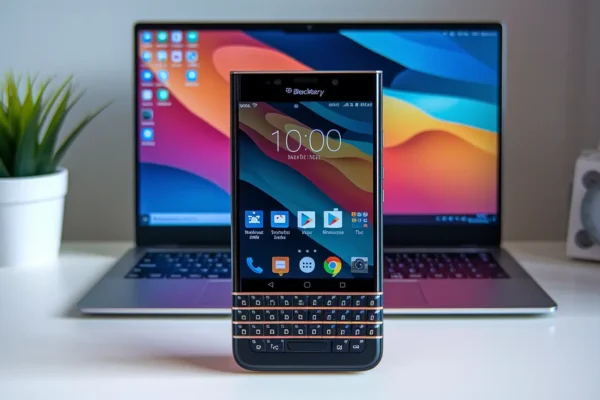
Think you can install a BlackBerry security patch like any Android APK?
BlackBerry security fixes come bundled inside a signed, model-specific OS build for BlackBerry 10 and legacy BlackBerry OS 7.x.
That means a Z30 package won’t work on a Q10, and mixing families risks a wiped or bricked device.
This guide shows the fastest, safest manual route: identify your exact model and build, pick the correct signed package, back up, use the proper tool (BB10 autoloader, legacy Desktop Software, PlayBook recovery), and proceed carefully.
Back up first. A manual flash can erase everything.
The Fastest Safe Route to a Manual BlackBerry Security Update
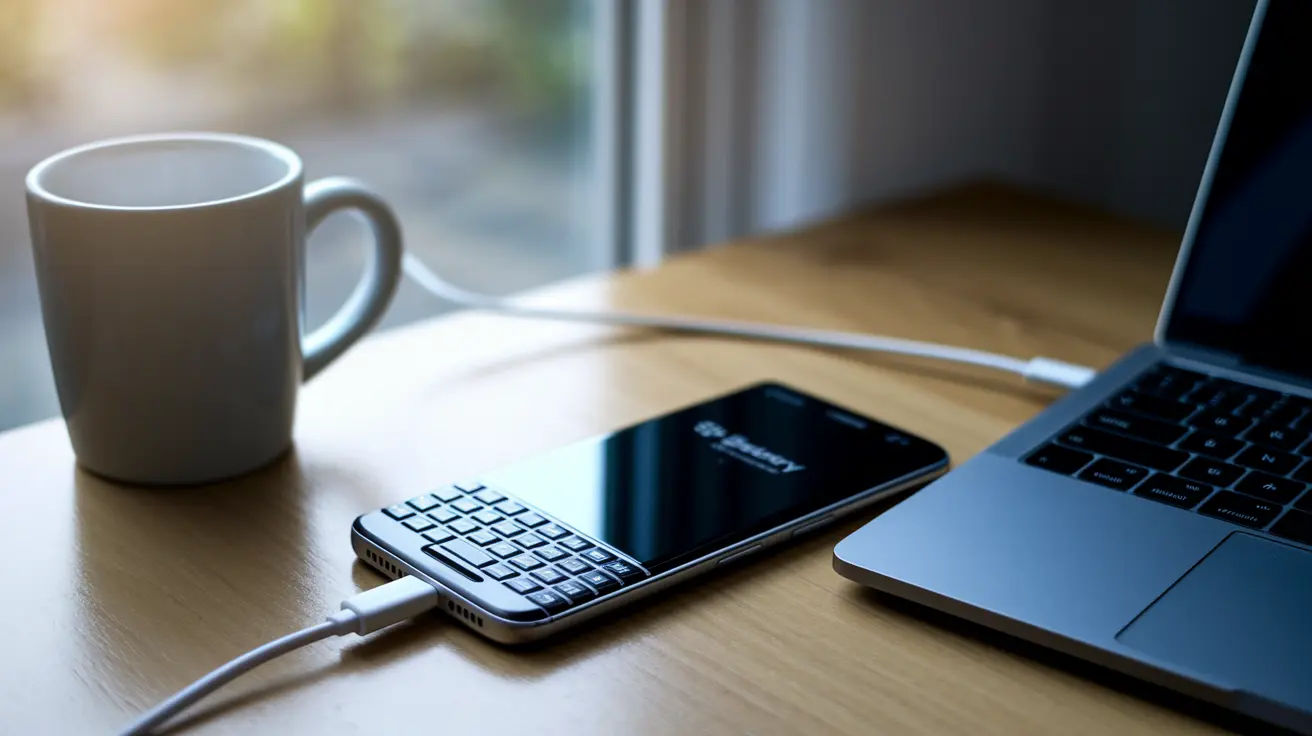
BlackBerry security fixes don’t usually show up as a standalone patch file. They’re bundled into a signed, model specific OS build that your device has to accept as a whole. That matters because one build can’t safely land on a different model or a different OS family. A package meant for a Z30 won’t help a Q10, and legacy BlackBerry OS 7.x firmware has nothing to do with a BlackBerry 10 device.
Here’s the route map before you touch a download link.
- Identify the exact device model, hardware variant, OS family, and current build.
- Select the corresponding official or carrier signed OS package.
- Create a complete backup before changing the installed OS.
- Choose the platform specific method: a BlackBerry 10 autoloader, legacy Desktop Software, or PlayBook recovery tool.
- Follow the applicable installation procedure.
- Compare the installed build with the official release documentation.
One safety note before anything else. A manual flash can wipe the device entirely, and you can’t interrupt the process once it starts. Don’t unplug the cable or power off mid flash just because it looks stuck.
That’s the short version. The full preparation steps, package validation, platform installs, and verification checks each get their own section further down, so keep reading before you download anything.
For BlackBerry 10, the autoloader is the standard tool. For legacy BlackBerry OS, Desktop Software paired with a device specific .exe gets the job done. PlayBook relies on its own recovery process, separate from both.
If the package you’ve found doesn’t explicitly list your exact model variant, stop there. Don’t assume a close match is close enough.
Include one annotated decision-tree graphic showing which installation method applies to each OS family.
Why Automatic BlackBerry OS Security Updates May Be Unavailable
(((alt-img2)))
Carrier approval schedules are one of the biggest reasons an OTA prompt never shows up. A BlackBerry release can get signed off by the manufacturer, then sit in a carrier’s queue for weeks before that same carrier pushes it to your specific model variant. Staged rollouts make this worse. Some users on the identical device and region see the update days or even months before others, simply because of how the rollout batches got split.
Then there’s the support lifecycle question. Older BlackBerry platforms, and plenty of individual models, have reached the point where manufacturer or carrier support formally ended. That means no more OTA prompts, even if a newer build once existed for a closely related model. It’s not that the update is hiding, it’s that it was never going to arrive for that device again.
Enterprise policy adds a third layer. If a device is managed through BES or a similar mobility platform, administrators can delay, block, or restrict an otherwise valid release until it’s tested and approved internally. Combine that with installed build eligibility rules, where a device sometimes has to sit on a specific prior build before it even qualifies for the next one, and it’s easy to see why “my phone never asked me to update” doesn’t necessarily mean something’s broken. It usually means one of these gates is in the way, which is exactly why the manual route covered later in this guide exists.
Prepare the BlackBerry and PC for a Manual OS Patch
(((alt-img3)))
Preparation isn’t optional here. Several autoloaders and recovery procedures perform a complete wipe as part of normal operation, not as an error state. Skipping backups before you start is the single most common regret readers report.
| Check | Requirement | Where or How to Confirm |
|---|---|---|
| Exact model code | Confirmed hardware variant (not just the marketing name) | Settings > About (BB10) or Options > About (legacy) |
| OS family and build | Current installed version recorded before changes | Same About screen, written down separately |
| Backup status | Two independent backups where practical | BlackBerry Link or Desktop Software completion screen |
| Battery charge | At least 50 percent, 80 percent preferred | Device battery indicator |
| Free storage | 1 GB minimum, 2 GB preferred for full images | Device storage settings and PC drive space |
| Windows admin access and drivers | Administrative rights plus installed BlackBerry USB drivers | PC user account settings and Device Manager |
| Cable and USB port | A reliable data cable, not a charge only cable | Test file transfer before starting the update |
To find your device and software details, head to Settings > About on BlackBerry 10, or Options > About on legacy BlackBerry OS. Both screens show the model, OS version, and build in one place. Write these down on paper or in a notes app before you close the screen. You’ll need to reference them again during package validation and verification.
While you’re there, you’ll likely see the IMEI listed too. Record it only if a support channel specifically asks for it, and keep it private otherwise. It’s an identifier for your specific device, not something to post publicly or share casually.
- Settings backup confirmed and saved
- Contacts and messages included in the backup
- App data backed up where supported
- Media (photos, videos, saved files) copied separately
- Backup file opens successfully in BlackBerry Link or Desktop Software
Include two annotated screenshots: the device About screen and the desktop backup completion screen.
Download and Validate the Correct BlackBerry OS Patch File
(((alt-img4)))
Before downloading anything, find the official release notes for your model and
Final Words
Install a signed, model-specific OS build — that’s the one-line takeaway from this guide. We covered identifying your exact model and build, making full backups, validating the official package, choosing the correct method (BlackBerry 10 autoloader, legacy Desktop Software, or PlayBook recovery), and verifying the installed build afterward.
If you follow the preparation, validation, installation, and verification steps here, you’ll know exactly how to install blackberry os security patch manually. Do it carefully, and your device stays secure and usable.
FAQ
Q: What is the fastest safe route to manually install a BlackBerry security update?
A: The fastest safe route is to install a signed, model-specific OS release (BlackBerry 10, legacy BlackBerry OS 7.x, or PlayBook) that contains the fix, following the correct autoloader or Desktop/Recovery method. Back up first.
Q: Why might an automatic BlackBerry OS update be unavailable for my device?
A: Automatic updates can be delayed by carrier approval, regional staged rollouts, ended manufacturer or carrier support, or enterprise policies that restrict OTA delivery for specific models or variants.
Q: How should I prepare my BlackBerry and PC before attempting a manual OS patch?
A: Prepare by recording exact model code and build, charging to 50–80%, freeing 1–2 GB on PC, obtaining Windows admin access and drivers, using a reliable cable, and creating at least two independent backups.
Q: How do I download and validate the correct BlackBerry OS patch file?
A: Download from official manufacturer, carrier, or authenticated enterprise sources; confirm release notes include the fix; verify model, build path, checksum, and digital signature before proceeding. Stop if provenance is unclear.
Q: How do I install a BlackBerry 10 security update using an autoloader?
A: For BlackBerry 10, run the validated autoloader executable as Administrator on Windows with the device connected, allow automatic reboots, and wait through first boot. Expect potential factory reset and 15–40 minute flash time.
Q: How do I apply a security update on legacy BlackBerry OS using Desktop Software?
A: For legacy devices, run the device-specific .exe on Windows to install package files, then use BlackBerry Desktop Software or AppLoader to detect and install the update over USB, removing vendor.xml only when appropriate.
Q: How do I update a BlackBerry PlayBook or use alternative patch methods?
A: PlayBook updates use tablet-specific recovery tools; connect the tablet to the official desktop recovery utility, select reinstall, enter recovery when prompted, and wait. SD, Bluetooth, or Wi‑Fi transfers won’t bypass signature checks.
Q: How can I verify the BlackBerry security patch was applied correctly?
A: Verify by checking Settings > About (or Options > About) for the expected build and security identifier, confirm radio/baseband if shown, then test boot stability, calls, messaging, Wi‑Fi, mobile data, and key apps.
Q: What should I do if a manual patch installation fails or the device is stuck?
A: If it fails, record the error, filename, checksum and logs; try expected safe fixes like reinstalling drivers, different USB port, or reflashing a confirmed signed image. Wait up to 30 minutes at boot animation before acting.
Q: How do I prevent future manual BlackBerry OS patch failures?
A: Prevent problems by archiving signed firmware, checksums, and release notes; inventory devices; test patches on a spare unit; schedule maintenance windows; monitor post‑update behaviour; and plan replacement for unsupported models.
Q: When should I escalate BlackBerry patch problems to carrier, enterprise, or repair support?
A: Escalate when the device is not detected on multiple PCs, repeatedly rejects compatible signed packages, has hardware damage, or requires server-side activation. Provide model/variant, IMEI/PIN securely, attempted builds, checksums, and saved logs.