How to Check BlackBerry Software Update Version Easily
By ashrafmansy
November 25, 2026
Field Notes
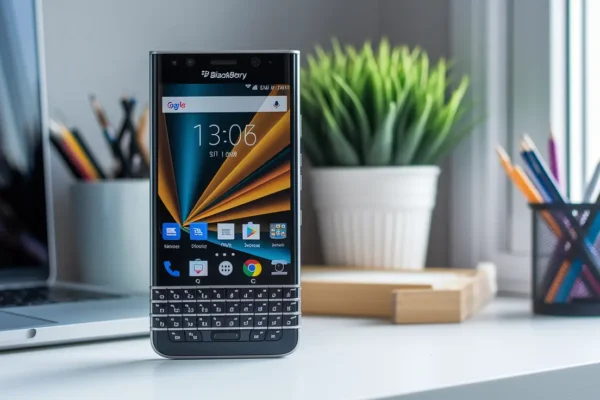
Think “BlackBerry” means one thing? Think again.
Whether you’re holding a Z10, a Bold, or a KEY2, the exact software version is what matters before you check for updates or try to fix something.
This quick guide shows how to find the full update string on BlackBerry 10 (Z10, Q10, Passport, Classic), legacy BBOS devices (Bold, Curve, Torch), and Android-based models (Priv, DTEK50, DTEK60, KEYone, KEY2).
It also points to desktop tools and explains why every segment of the version number matters.
Find Your Current BlackBerry Software Version in Settings
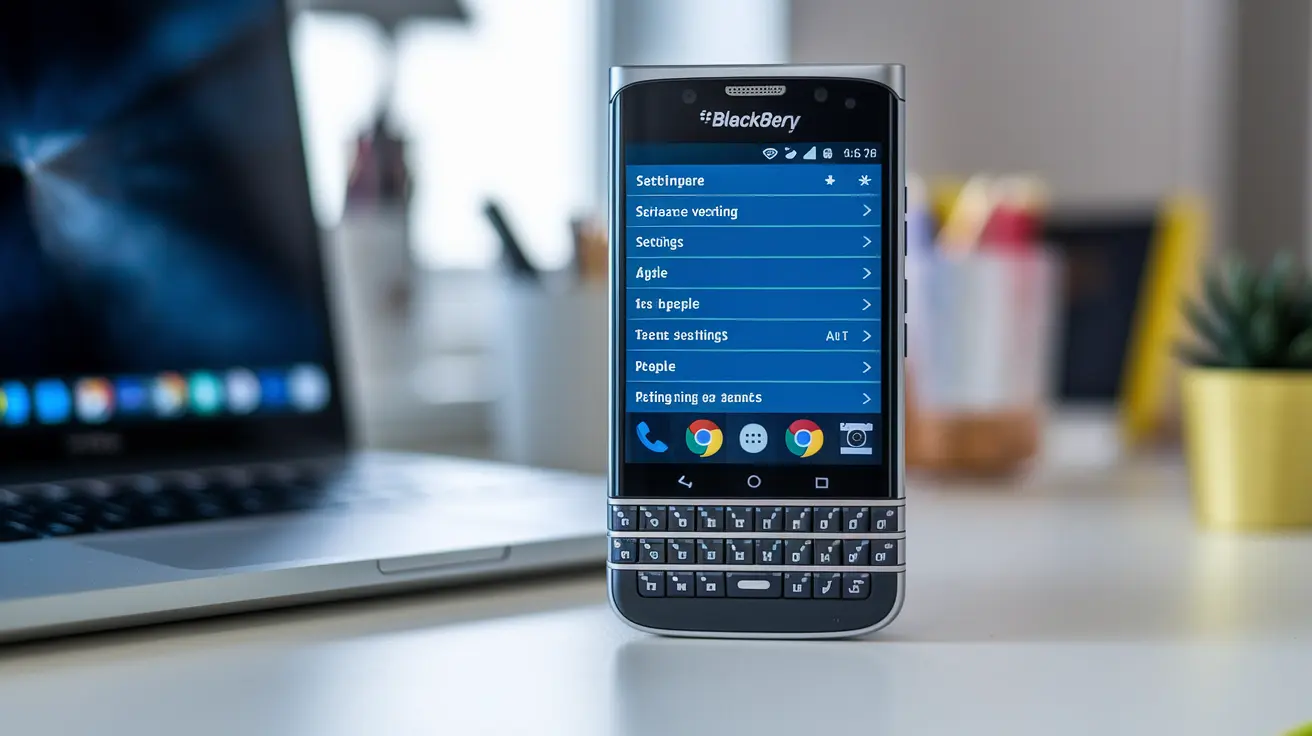
Before you check for updates or troubleshoot anything, you need to know what you’re actually working with. The exact menu path depends on whether your phone runs BlackBerry 10, legacy BlackBerry OS, or Android. These are three very different systems under one brand name, so the steps below are grouped by platform. Find yours and skip the rest.
BlackBerry 10 Devices
If you’re on a Z10, Q10, Passport, or Classic, here’s where to look.
- Open Settings from your home screen or app menu.
- Select About.
- If the version isn’t shown directly, tap OS or Software Release to expand the details.
- Record the full version number, something like 10.3.3.2205.
BlackBerry OS 7 and Earlier
Older Bold, Curve, and Torch models use a different menu structure entirely.
- Open Options from the home screen or app list.
- Select About.
- Choose Device or Software Releases to view the installed build.
- Note the complete number, such as 7.1.0.585.
On some models, Options > Status is an alternate path to the same information.
Android Based BlackBerry Phones
The Priv, DTEK50, DTEK60, KEYone, KEY2, and KEY2 LE all run Android, so the path looks familiar if you’ve used other Android phones before.
- Open Settings.
- Scroll to About phone (sometimes under System > About phone).
- Record the Android version, build number, and security patch level.
- Double check all three fields, since they tell different parts of the story.
(((alt-img3)))
Whichever platform you’re on, the complete number matters. Just “BB10,” “OS 7,” or “Android” isn’t enough for an accurate comparison. You need every segment of that string.
Check for updates
- BB10: Settings > Software Updates
- Supported legacy devices: Options > Device > Software Updates
- Android based phones: System Update or Security & updates
Head to the dedicated OTA checking section below for full instructions on what these screens actually tell you.
Why Update Availability Varies Between BlackBerry Devices
Two phones that look identical on paper can get completely different results when checking for updates. Before you start comparing your version number to what someone else has, confirm the exact model you’re holding. Carrier, sales region, and staged rollout schedules all play a role here. A Canadian carrier version of a KEY2 might see an update weeks before the same model sold unlocked somewhere else.
There’s also the enterprise angle. If your BlackBerry is managed by an organization, BlackBerry UEM, BES12, or another policy layer might be delaying or outright blocking a release that’s otherwise available. This isn’t a bug, it’s usually intentional, giving IT departments time to test compatibility before pushing updates out to managed devices.
Check for a BlackBerry Software Update Over the Air
(((alt-img3)))
Viewing your installed version tells you what you have right now. Checking for an update tells you whether something newer is actually waiting. Two different questions, and the menu paths differ by platform.
Check for a BB10 Update
- Open Settings.
- Select Software Updates.
- Tap Check for Updates.
You’ll see one of three results: a message that you’re up to date, a notice that an update is available, or an indication that something is already downloading or pending installation. On some BB10 releases, this option sits beneath About instead of appearing as its own entry, so look there if you don’t see it right away.
Check for a Legacy BlackBerry OS Update
- Open Options.
- Select Device.
- Choose Software Updates, if the option is present.
Not every legacy BBOS model includes this OTA command. If you don’t see it, that doesn’t confirm or deny whether a newer release exists, it just means this particular path isn’t available on your device.
Check for an Android BlackBerry Update
- Open Settings.
- Navigate to System Update, which may appear under About phone or under Security & updates depending on your Android release.
- Run the check and review the result.
Keep in mind that operating system and security updates are handled separately from app updates. BlackBerry Hub and other apps update through Google Play, not through the System Update screen.
BlackBerry Desktop Tools for Software Updates
(((alt-img4)))
If the on device check doesn’t cut it, BlackBerry’s desktop utilities offer another route, though each one is tied to a specific platform.
BlackBerry Link for BB10
BlackBerry Link is the desktop companion built for BB10 phones. Once it recognizes a compatible device over USB, it can check whether a software release is being offered and, in some cases, reload the operating system entirely.
This is the relevant tool for devices like the Z10, Q10, Passport, and Classic. If you’re troubleshooting an update issue on one of these phones, Link is where you’ll want to start on the computer side.
BlackBerry Desktop Software for Legacy BBOS
For older BBOS phones, the equivalent tool is BlackBerry Desktop Software, sometimes labeled Desktop Manager depending on the release. It can present carrier approved operating system packages that aren’t always visible through the on device OTA check.
Worth noting, BlackBerry Blend is a different tool entirely. It’s built around content and communication syncing, not operating system maintenance, so it won’t help here.
Interpret Version Strings and Confirm an Installed Update
(((alt-img5)))
A version number like 10.3.3.2205 isn’t just a random string. Each segment means something. The first number, 10, identifies the major platform. The second, 3, is the minor release. The third, 3, marks the maintenance release. The final number, 2205, is the specific build. Comparisons read left to right, so 10.3.3 is newer than 10.3.2 regardless of what the build number looks like on either one.
Final Words
You now know exactly where to find the complete software string: Settings > About for BB10, Options > About for legacy BBOS, and Settings > About phone for Android-based BlackBerry devices. We covered OTA checks, desktop tools, how to read build strings, and basic troubleshooting.
Use the checklist before installing and double-check your exact model, carrier, and build. If checks fail, follow the five troubleshooting steps or gather the listed details and escalate.
Follow these steps and you’ll have a reliable way to confirm updates — you now know how to check blackberry software update version on any BlackBerry, and you’re set.
FAQ
Q: How to check software version on phone?
A: To check the software version on your phone, identify whether it runs BlackBerry 10, legacy BlackBerry OS, or Android—then open Settings (or Options) > About (or About phone) to view the full version string.
Q: Can I still use BlackBerry in 2026?
A: You can still use BlackBerry in 2026 if your device runs Android or a supported BlackBerry 10/legacy release; app and security support vary, with Android-based BlackBerries offering the broadest compatibility.
Q: What is the OS of BlackBerry?
A: The OS of BlackBerry is BlackBerry 10, legacy BlackBerry OS (7 or earlier), or Android on newer models—check Settings > About to confirm which platform and exact build your phone reports.
Q: How can I update my old Android to the latest version?
A: To update an old Android, check Settings > System > System update (or About phone > System update), use the manufacturer’s update tool, or contact your carrier—availability depends on model and vendor support.