BlackBerry Priv Battery Draining Fast? Fix It Now
By adminDev2
November 13, 2026
Field Notes
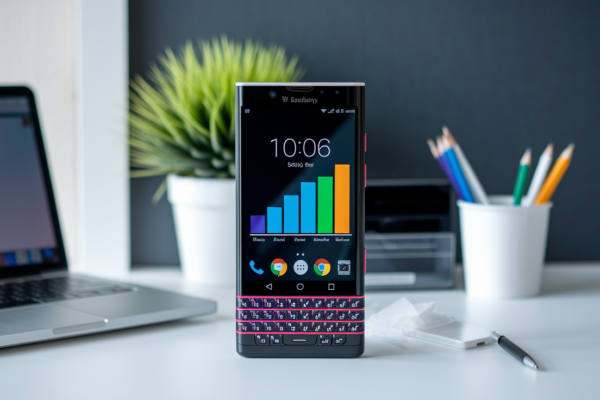
Think your BlackBerry Priv battery is shot? Not so fast.
The Priv (launched November 2015) uses a non-removable 3,410 mAh lithium-ion battery, but fast drain usually comes from six fixable causes: the display, background apps, weak cellular signal, active radios, charging faults, or a battery that’s simply aging.
This post gives a tight, step-by-step checklist — quick safety checks (swelling, heat), a baseline battery screenshot, a one-hour idle test, and charger checks — so you can find and fix the problem before risking a hardware swap.
Start Here: Rapid Battery-Drain Checks
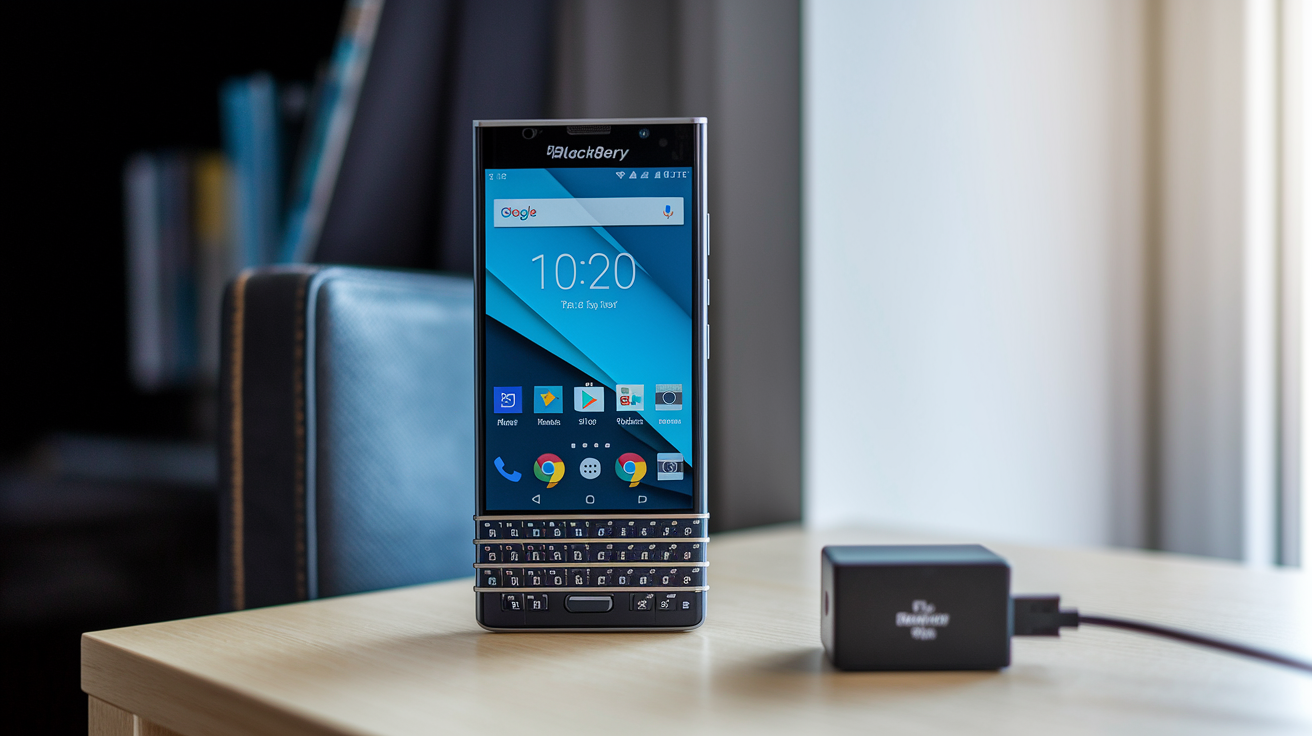
Rapid battery drain on a BlackBerry Priv usually comes down to one of six culprits: the display, background app activity, a weak cellular signal, active wireless radios, a charging fault, or a battery that’s simply aging out. This device launched back in November 2015 and runs on a non-removable 3,410 mAh lithium-ion battery, so swapping it yourself at home isn’t really an option without some work involved. Before you touch a single setting, run through these checks first.
- Look at the rear casing for swelling and feel for unusual heat. See a bulge anywhere on the back? Shut the phone down right away.
- Restart the Priv. This clears out a stalled process that might be eating power for no real reason.
- Grab a screenshot of Settings > Battery before changing anything. You’ll want that baseline later.
- Note the top three battery consumers. Flag anything using more than 10% while idle, that’s worth a second look.
- Check brightness, screen timeout, Battery Saver, GPS, Bluetooth, and NFC. We’ll cover these in detail further down.
- Compare drain over one idle hour and overnight. Losing more than roughly 1 to 2% per idle hour is worth investigating further.
- Check whether the phone charges normally with a known good cable and charger.
One quick note. Slow charging can look a lot like active battery drain, but it might actually point to a weak charger, a damaged cable, a dirty micro USB port, or heavy use while plugged in.
How to Diagnose and Fix BlackBerry Priv Battery Drain
(((alt-img2)))
The fastest way to solve Priv battery drain isn’t random fixes, it’s working through a sequence. Start with reversible settings changes, move into app isolation, test your charging setup, calibrate only if needed, and treat a factory reset as your last software option before you start thinking about a hardware issue.
How to Establish a Baseline and Reduce Display or Radio Drain
- Charge the phone to a consistent starting percentage and capture the Battery overview (screenshot: battery_usage.png).
- Leave it idle for one hour under normal signal conditions and record the percentage lost.
- Set brightness to 20 to 50%.
- Set screen timeout to 15 to 30 seconds.
- Enable Battery Saver for a controlled comparison.
- Disable unused GPS, Bluetooth, NFC, Wi-Fi scanning, and Bluetooth scanning.
- Repeat the one hour test under similar conditions.
Grab a screenshot of your Display settings for reference. Battery Saver can limit background activity and delay notifications, so double check that calls, email, and messages still come through after you enable it. Test these changes as a group first. If drain improves, go back and isolate which one actually made the difference.
How to Find and Control a Rogue App
Open Settings > Battery and tap the highest consumer on the list (screenshot: appbatteryinfo.png). Compare its foreground use against background use. This tells you whether it’s draining power while you’re actually using it or while it’s just sitting idle.
Force stop the app temporarily and watch what happens. Clear its cache. Restrict unnecessary background data or location permission if the app doesn’t need constant access. Still draining at an excessive rate? Uninstall it.
Don’t forget to check low priority email or calendar sync loops here too. If an account doesn’t need instant updates, stretch out its sync interval to cut down on recurring background checks.
An app using more than 10 to 20% without much foreground use deserves a closer look. But be careful, repeatedly swiping away every recent app or installing multiple task killers can backfire. Android often has to restart those services anyway, which can end up using more power, not less.
How to Test Safe Mode and Install Updates
- Hold the Power button.
- Long press Power off for approximately 2 to 3 seconds.
- Confirm the Safe Mode prompt.
- Verify that the Safe Mode watermark shows up in the bottom corner (screenshot: safe_mode.png).
- Monitor drain for 10 to 30 minutes, then run a longer idle comparison if needed.
- Remove recently installed or updated apps if drain drops substantially.
- Restart normally and install available system and Play Store updates (screenshot: system_update.png).
Safe Mode temporarily disables third party apps without touching your personal data, so it’s a much safer first step than uninstalling a batch of apps all at once. If the drain disappears in Safe Mode, you’ve got your answer, a third party app is responsible.
How to Check Charging and Calibrate an Inaccurate Reading
- Test a reliable 5V/1.5 to 2A charger.
- Replace a visibly damaged or unreliable micro USB cable.
- Inspect the charging port for debris or looseness. Don’t use metal tools here.
- Compare charging speed while the phone is powered off.
- Calibrate only if the percentage jumps, stalls, or causes an inaccurate shutdown.
- Use the phone until it reaches 0 to 5% or shuts down on its own.
- Charge uninterrupted to 100%.
- Leave it connected for one additional hour, then restart.
Calibration should be a one or two time thing. It can’t restore capacity that’s already been chemically lost to age. And one more thing worth mentioning, third party battery saving apps often add their own background activity, so don’t treat them as a substitute for charging or calibration.
How to Factory Reset the Priv and Escalate Persistent Faults
- Back up your data. Allow 15 to 60 minutes depending on how much you’ve got stored.
- Save authentication details for your Google account and any other logins.
- Remove the SD card if one is installed.
- Open Settings > Backup & reset or System > Reset options, depending on your current build.
- Select Factory data reset.
- Confirm the wipe (screenshot: factory_reset.png).
- Monitor the clean phone for 24 to 48 hours before restoring any apps.
- Reinstall apps selectively, watching battery stats after
Final Words
Start by checking the display, background activity, weak signal, active radios, charging gear, and battery age — those are the usual culprits.
Work through the ordered checklist: inspect for swelling and heat, restart, capture a Battery screenshot, flag top consumers, test brightness and radios, compare one-hour and overnight drain, and verify charging with a known-good cable. Then use Safe Mode, app isolation, calibration, or factory reset before considering professional replacement.
Keep this blackberry priv battery draining fast troubleshooting checklist handy; with careful tests you’ll usually find the cause and restore usable life.
FAQ
Q: How long does a BlackBerry battery last?
A: The BlackBerry battery life depends on model and use; the Priv’s 3,410 mAh typically delivers a full day of moderate use, and idle loss above roughly 1–2% per hour suggests a problem to investigate.
Q: How to fix a drained phone battery?
A: To fix a drained phone battery, restart the Priv, lower brightness, enable Battery Saver, check Settings > Battery for high-drain apps, test charging with a known-good cable/charger, and calibrate if percentage jumps or stalls.
Q: How much does a BlackBerry battery cost?
A: A BlackBerry battery part usually costs $15–$50; professional replacement for non-removable models like the Priv commonly runs $40–$100+ and takes about 30–120 minutes, so prefer trained service.