BlackBerry Passport WiFi Won’t Connect? Quick Fixes Here
By allvenue
November 12, 2026
Field Notes

BlackBerry Passport won’t connect to Wi‑Fi? More often than you think the fix is a five-minute setting tweak, not a dead radio.
This guide walks you through 10 clear steps for the BlackBerry Passport (BlackBerry 10 OS) so you can find the fault fast.
Stop at the step that gets you back online, and test with a browser after each attempt, not just the Wi‑Fi icon.
You’ll learn to check SSID and password, power-cycle the phone and router, isolate device vs network, update or reset network prefs, and when to back up or seek repair.
Fix Your BlackBerry Passport Wi‑Fi Connection in 10 Steps
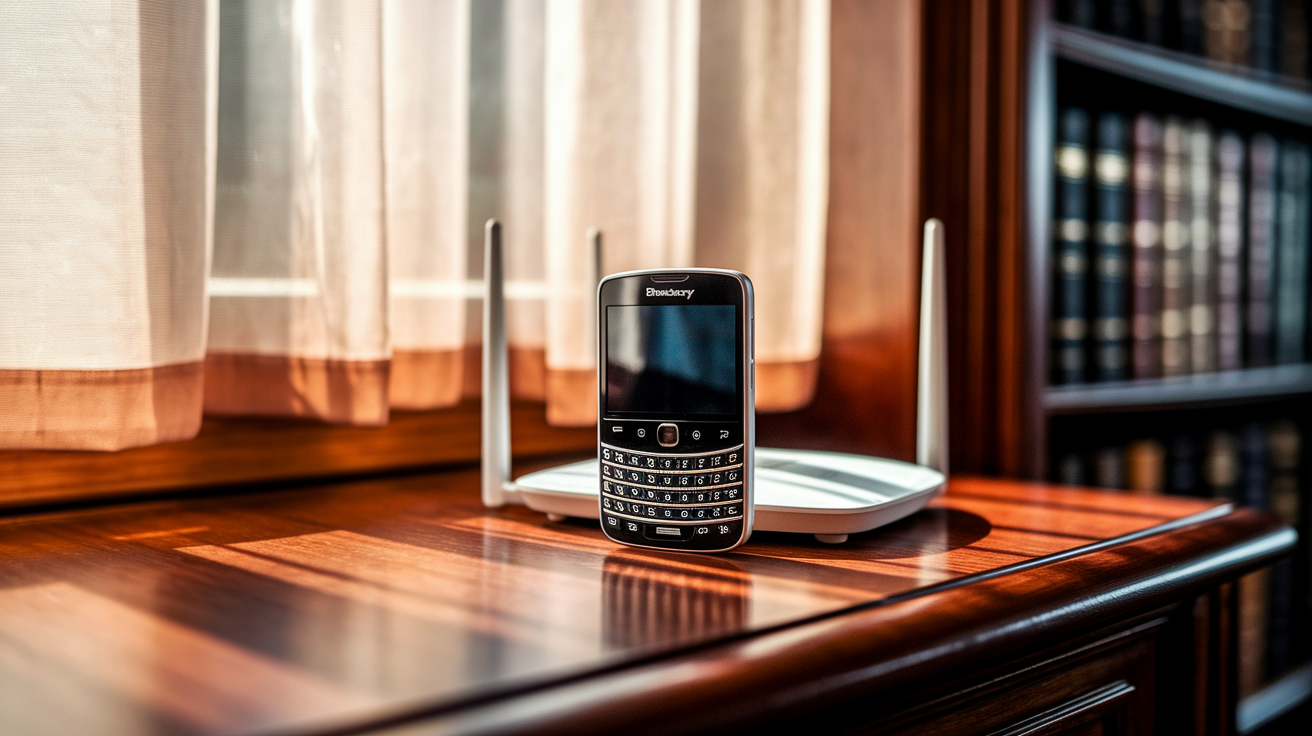
Stop at whichever step gets you back online. After every action below, open a browser and try loading a webpage to confirm the fix actually worked, not just that the Wi‑Fi icon looks happy.
- Confirm Wi‑Fi is on and Airplane Mode is off.
- Check the selected SSID and re-enter the case-sensitive password.
- Turn Wi‑Fi off, wait 10 seconds, and turn it back on.
- Power off the Passport, wait 10 to 15 seconds, and restart it.
- Forget the saved network and reconnect.
- Restart the modem and router in the correct order.
- Test the Passport on another Wi‑Fi network or mobile hotspot.
- Check for BlackBerry 10 OS updates.
- Reset Wi‑Fi or network preferences.
- Back up the device, then continue to the final section for the remaining software and professional repair options.
Each of these steps gets its own section below, with the exact menu paths and what success or failure actually means. If step 7 leaves you unsure whether the problem is the Passport or the network itself, skip ahead to the isolation section. That’s where the phone versus router decision rules live.
Check the Passport’s Wi‑Fi, SSID, Password, and Saved Profile
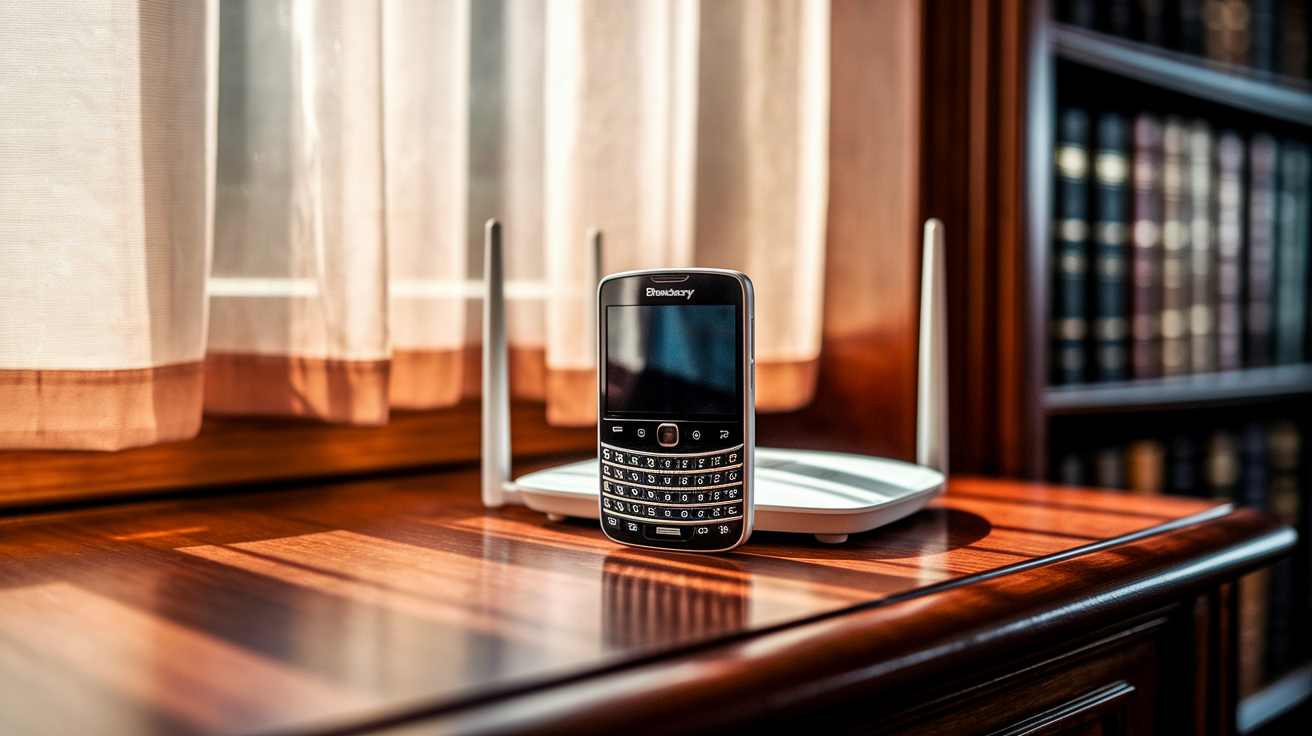
A lot of Wi‑Fi failures trace back to a stale or slightly wrong saved network profile, not a broken radio. Before touching router settings, it’s worth confirming the Passport is actually trying to join the right network with the right credentials.
Start by looking at the exact SSID selected in Settings, then Wi‑Fi. Homes and offices often broadcast separate 2.4 GHz and 5 GHz networks with nearly identical names, plus a guest network that looks similar too. If the Passport grabbed the wrong one, or a weaker guest network, it can show connected while barely working. Confirm you’re choosing the network you actually intend to use.
Next, re-enter the password slowly. Wi‑Fi passwords are case sensitive, so “Router123” and “router123” aren’t the same thing. If the router password changed recently, maybe after a provider swap or a household update, the Passport’s saved copy is now wrong and will keep failing silently until you fix it.
If re-entering the password doesn’t help, forget the saved profile entirely. Long press or tap the SSID in Wi‑Fi settings and choose Forget or Remove, wait at least 30 seconds, then reconnect and type the password fresh. After reconnecting, check whether the Passport receives an IP address in the 192.168.x.x range, visible on the network details screen. Pay attention to the exact wording of any error. “Authentication Error” points to a password or security mismatch. “Connected, no Internet” means the Wi‑Fi handshake worked but something downstream, like DHCP or DNS, is broken. Those are different problems, and we’ll cover them later in this guide.
Restart the BlackBerry Passport, Modem, and Wi‑Fi Router Correctly
(((alt-img3)))
Restarting sounds simple, but doing it in the wrong order or skipping a true power cycle often means the fix never had a chance to work.
Start with the Passport itself. Power it off completely, wait 10 to 15 seconds, and turn it back on. This clears temporary radio states that a simple Wi‑Fi toggle sometimes misses.
For a combined router, one box handling both modem and Wi‑Fi, unplug it from power entirely for 30 to 60 seconds. Don’t just press a reset button on the back, that’s not the same as cutting power. Plug it back in and give it 2 to 5 minutes to fully boot before testing anything. With separate modem and router units, power off both first. Start the modem alone and wait 1 to 2 minutes until its online light settles. Only then power on the router and wait another 1 to 2 minutes for it to broadcast Wi‑Fi again.
Once everything’s back up, check whether one other wireless device, a laptop or tablet, can get online using the same network. Don’t try to interpret what that result means yet. The next section walks through exactly how to read that outcome and decide whether the fault sits with the Passport or the network itself.
(((alt-img3)))
Test Whether the Wi‑Fi Fault Is the Passport or the Network
(((alt-img4)))
This is the step that decides where you spend your time next, so it’s worth doing properly rather than guessing.
Test one other device on the original Wi‑Fi network first. Then connect the Passport to a guest SSID if one exists, a different known good home or office network, and a mobile hotspot from another phone. Finally, repeat the original network test with the Passport moved within 1 to 3 metres of the router, which rules out weak signal or physical interference as the culprit.
Results that point to the router
If other devices also fail to get online using the original network, the problem is almost certainly the router, modem, or the internet service itself, not the Passport. Likewise, if the Passport connects successfully through a mobile hotspot or a different home network, that’s a strong signal the Passport’s Wi‑Fi radio is working fine. At that point, attention should shift to the original router’s security settings, frequency band, DHCP configuration, filtering rules, client congestion, or a possible service outage from the ISP.
Results that point to the Passport
If the Passport fails to connect on at least two separate known good networks, that points toward the device itself. Other warning signs include the Passport detecting zero visible SSIDs while a nearby device sees several, a Wi‑Fi toggle that appears greyed out, or a connection range so short it barely works a few centimetres from the router.
It also helps to note exactly how the failure behaves. “Cannot connect at all” is different from “connects but shows no internet,” which is different again from “connects fine then drops a minute later.” Write down which one you’re seeing, because each points toward a different fix path, whether that’s authentication, DHCP, or something else entirely.
Final Words
Start with the 10-step checklist: confirm Wi‑Fi and Airplane Mode, re-enter the case‑sensitive SSID password, toggle Wi‑Fi, restart the Passport and router, forget and reconnect, and test another network.
Then work through router compatibility (2.4/5 GHz, WPA2‑PSK/AES), DHCP/DNS and MAC filters, captive‑portal and enterprise steps, BlackBerry 10 updates, and a network reset if needed.
If those steps don’t fix it, follow the isolation rules and consider a Security Wipe or pro repair. This blackberry passport won’t connect to wifi troubleshooting roadmap should get you back online.
FAQ
Q: Why can’t I connect to the internet even though Wi-Fi is connected?
A: The reason you can’t connect to the internet even though Wi‑Fi shows connected is usually an IP/DHCP, DNS, captive‑portal, or router block. Test another device, open the browser for captive login, forget and re‑add the SSID, or restart the router.
Q: Can you use the internet on a BlackBerry phone?
A: You can use the internet on a BlackBerry phone: BlackBerry 10 and Android‑based models support Wi‑Fi and mobile data. Check your OS build and app support, since some legacy services may be limited in 2026.
Q: How to hard reset a BlackBerry?
A: To hard reset a BlackBerry, back up your data first. On BlackBerry 10 use Settings → Security and Privacy → Security Wipe; on Android‑based BlackBerry use Settings → System → Reset options → Erase all data. Have your BlackBerry ID ready.
Q: Is BlackBerry still usable in 2026?
A: BlackBerry is still usable in 2026: Android‑based BlackBerry phones offer modern app support; BlackBerry 10 devices like the Passport handle calls, email, and Wi‑Fi but face reduced updates and shrinking app compatibility.