BlackBerry 10 Touchscreen Not Responding? Easy Fixes Here
By 82yoon
November 12, 2026
Field Notes
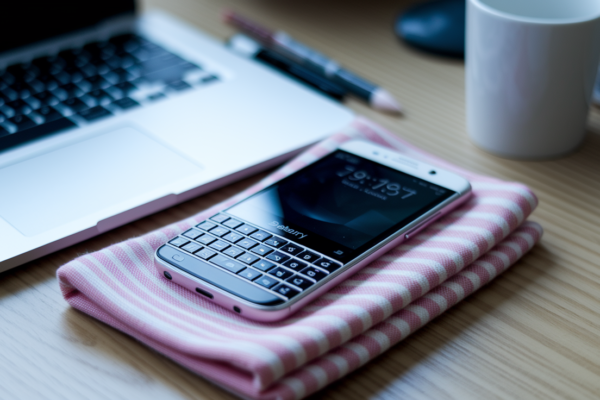
Think your BlackBerry 10 touchscreen is fried? Most of the time it isn’t, and you can often fix it in 5 to 20 minutes without touching your data.
This guide walks device-first through BlackBerry 10 models (Z10, Q10, Classic) with clear, ordered steps: disconnect chargers, check case and protector, clean, soft reboot, then test.
By following these quick, data-safe checks in order you’ll usually restore touch input or know whether it’s a real hardware problem and what to do next.
Quick, Data-Safe Steps to Restore Touch Input
If your BlackBerry 10 touchscreen not responding fix needs to happen fast, start here. These steps won’t touch your data, and you should run them in order before trying anything more involved. Most people see results within 5 to 20 minutes.
- Disconnect the charger and any accessories (30 seconds). Loose cables or a faulty charging brick can sometimes interfere with touch response.
- Remove the case (30 seconds). A tight or warped case can press against the edges of the glass and create false touch zones.
- Remove or reseat the screen protector (1 minute). A lifted edge or trapped air bubble is a surprisingly common cause of touchscreen not responding symptoms.
- Power off and safely clean the glass and edges (2 to 3 minutes). Use a microfiber cloth lightly dampened with 70% isopropyl alcohol. Avoid excess liquid, especially near the edges and ports.
- Dry the screen and your hands completely (1 minute). Sweaty or wet fingers reduce the capacitive response the screen depends on.
- Perform the 10 second soft reboot (1 to 2 minutes). Hold Volume Up and Volume Down together for about 10 seconds. If the phone is fully frozen, hold Power for 10 to 15 seconds instead.
- Charge and test the touchscreen (10 to 30 minutes if the battery is low). A battery under 20% can cause inconsistent touch behavior on some BlackBerry 10 devices.
BlackBerry Classic owners get a bit of a shortcut here. Since the Classic has a physical trackpad and keyboard, you can navigate menus, close apps, and even start a backup without touching the screen at all. If touch input is still unreliable after these seven steps, don’t start guessing. Write down exactly what you’re seeing, when it happens, and which apps or screens are affected. You’ll need that record for the diagnostic section coming up.
[Suggested video: 30 to 60 second demonstration of the soft reboot sequence, showing the Volume Up and Volume Down hold]
[Suggested image: annotated photo showing the correct, small amount of isopropyl alcohol on a microfiber cloth]
Why a BlackBerry 10 Touchscreen Stops Responding
(((alt-img2)))
A capacitive touchscreen, which is what every BlackBerry 10 device uses, works by detecting small electrical changes caused by a conductive object, like your finger, touching the glass. That’s why gloves usually don’t work. It’s also why moisture, grease, dust, or a poorly fitted protector can confuse the screen into registering touches that didn’t happen, or ignoring touches that did.
Touchscreen not responding doesn’t always mean the same thing. Ghost taps, where the phone registers presses nobody made, point to a different cause than a delayed response where your tap works but half a second late. A partial dead area, where one corner or edge won’t register touch, is different again from a completely unresponsive display where nothing works at all. We’ll sort out which category your device falls into during the diagnostic steps ahead, but it’s worth paying attention to the pattern now.
Power and environment matter more than most people expect. A low battery, an incompatible charger, a hot car interior, or dry winter air can all cause a BlackBerry 10 touchscreen to act up without any real hardware fault. On the software side, a misbehaving third-party app or an unstable OS build can make the screen look broken even though the digitizer and display are working exactly as designed.
As you go through this, start noting timing. Did the problem begin right after installing an app, right after an OS update, right after a drop, or after contact with liquid? Was it within the last 24 to 72 hours, or closer to 30 days ago? That timeline matters a lot in the next section, where we turn these observations into an actual diagnosis.
Diagnose BlackBerry 10 Touchscreen Dead Zones and Ghost Touch
(((alt-img3)))
This is where scattered symptoms turn into an actual diagnosis. Run each check below once, write down what you find, and keep that record handy. You’ll refer back to it during the software, reset, and hardware decisions later in this guide, instead of repeating these tests over and over.
The key thing to figure out here is whether the fault is tied to one specific app, or whether it shows up consistently across native BlackBerry screens and multiple complete boots. A problem that only happens in one third-party app is almost always software. A problem that follows you from the lock screen to the home screen to the keyboard, no matter how many times you restart, is a different story.
Test All Nine Touchscreen Zones
Open a native drawing or note app and mentally divide the display into a 3×3 grid: top row, middle row, bottom row, each split into left, center, and right. Trace a continuous line through every zone, including the far corners, the bottom keyboard row, and the gesture area you swipe up from.
Watch for skipped lines, a noticeable delay between touch and response, ghost taps appearing where you didn’t touch, or zones that only respond when you press harder than normal. Write down exactly which zones failed and how. A testing app like this is useful for documenting the problem clearly, but it can’t fix a failing digitizer. It’s a record-keeping tool, not a repair tool.
Compare Touch Input With Physical Controls
Next, compare how touch behaves on the lock screen, home screen, call screen, and a couple of native apps against how the trackpad, volume keys, and physical keyboard (on models that have one) respond.
If the dead zone or ghost touch only shows up in one particular app, that’s a strong sign of an app conflict rather than a hardware problem. But if the same dead area shows up consistently across native screens, that pattern points toward hardware.
Apply the Hardware Warning Thresholds
A few specific results should raise a flag. A dead area covering more than 10% of the display, zero touch response across 3 full boots, or input that only registers under heavy pressure are all signs worth taking seriously.
Add to that list any visible cracks, delamination (where layers of the screen appear
Final Words
Start with the quick, data-safe steps in order: remove the case and screen protector, clean the glass lightly with a microfiber moistened with 70% isopropyl, dry it, perform the 10-second soft reboot, then charge and test.
Use the nine-zone diagnostic, inspect liquid indicators and the frame, isolate charger and recent apps, and back up before any wipe or reload.
If touch still fails, your recorded diagnostic results make repair or parts decisions easier. This blackberry 10 touchscreen not responding fix often resolves with the checklist above, and you’ll know the right next move.
FAQ
Q: How to fix a not working touch screen?
A: To fix a not working touchscreen, try quick data-safe steps: remove case/protector, clean glass with a lightly damp microfiber (70% isopropyl), soft-reboot (Vol Up+Vol Down ~10s), then charge and retest.
Q: Is BlackBerry still usable in 2026 and does BlackBerry 10 still work?
A: BlackBerry remains usable in 2026 depending on model, carrier support, and app needs; BlackBerry 10 devices still run (last major builds were 10.3.x), but app and modern service compatibility is limited.
Q: What killed BlackBerry phones?
A: What killed BlackBerry phones was the rapid consumer shift to touchscreen-centric platforms, slow platform adaptation, a shrinking app ecosystem, and stronger iOS/Android competition plus carrier and enterprise migration away from BlackBerry.