BlackBerry 7 SIM Card Not Detected? Easy Fixes
By Article Editor
November 12, 2026
Field Notes
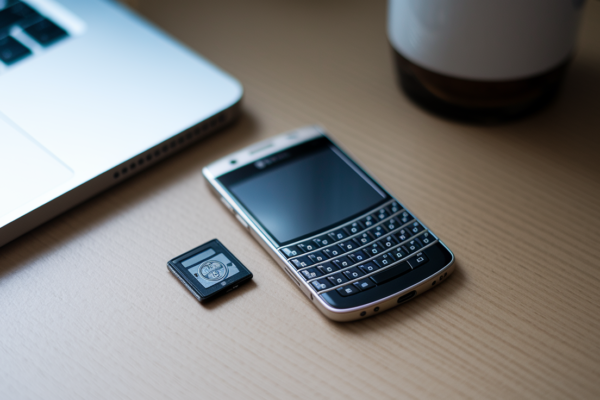
BlackBerry 7 showing “SIM Card Not Detected”? Before you blame the carrier, try this: most detection failures come from a misseated SIM, dirty gold contacts, or a confused reader. This post walks you through a five-minute SIM check sequence, how to match the exact on-screen message, and the quick inspections that fix the majority of cases. You’ll learn when to clean contacts, when to swap SIMs for testing, and when it’s time to contact your carrier — clear, step-by-step, no guesswork.
Five-Minute SIM Check Sequence
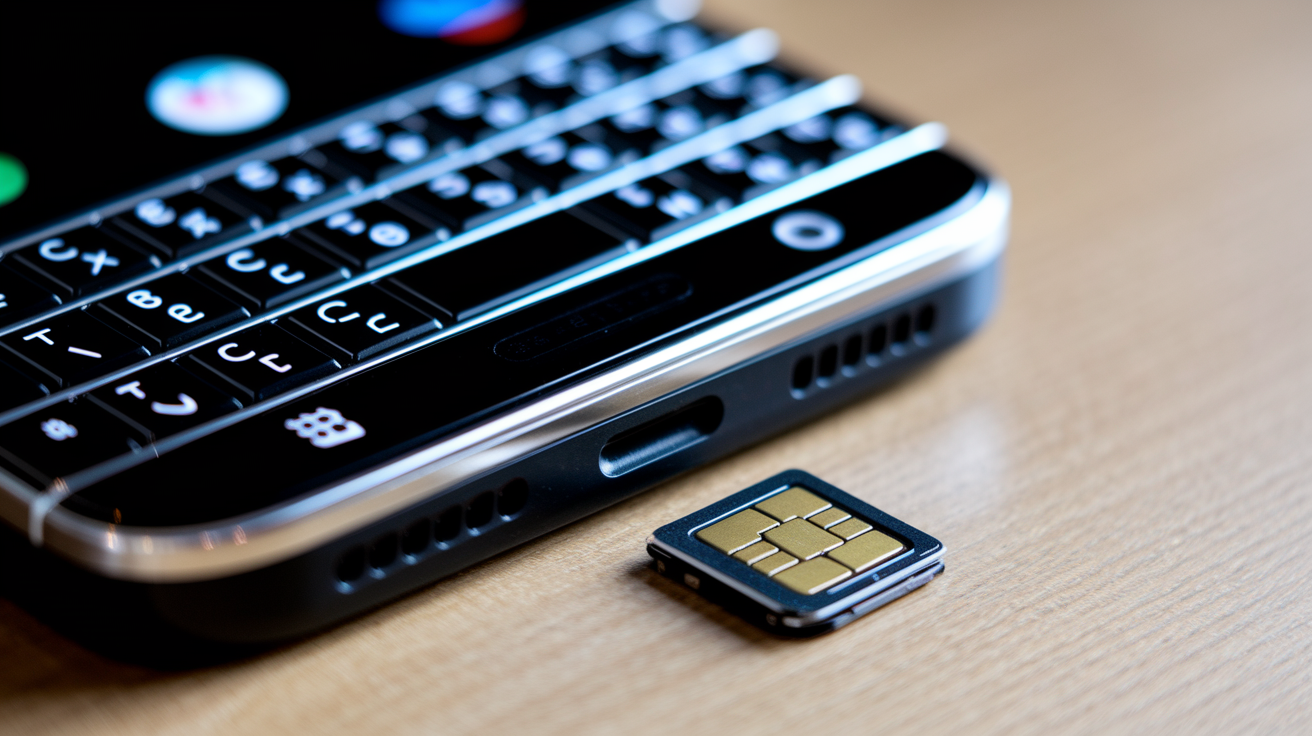
Before you touch the SIM card, power the BlackBerry completely off. Don’t remove, insert, or adjust the card while the device is still running. Doing so while powered on can cause a bad read or, in rare cases, damage the card.
Once the phone’s off, work through these steps in order.
- Power off the BlackBerry completely.
- Remove the battery when the model has a removable battery.
- Remove the SIM and wait 30 to 60 seconds.
- Match the notched corner to the slot, reinsert the SIM, and confirm it lies flat.
- Reinstall the battery, start the phone, and allow up to 5 minutes for detection and network registration.
This whole sequence takes about 1 to 5 minutes, and it resolves a surprising number of detection errors. Usually ones caused by a SIM that simply wasn’t seated correctly to begin with.
If the phone still shows a SIM error after the restart, don’t start cleaning contacts or pulling the tray apart yet. Head to the next section first and match the exact wording on your screen. The message itself tells you which diagnostic path to follow.
| Diagram Element | What It Shows |
|---|---|
| Notched corner | Orientation guide for correct insertion direction |
| Gold-contact direction | Which side faces down into the reader |
| Battery location | Where the battery sits relative to the SIM slot |
| Full seating position | How the card looks when properly flush in the tray |
What BlackBerry 7 SIM Detection Messages Mean
(((alt-img2)))
The exact wording on your BlackBerry’s screen matters more than you’d think. A phone that can’t detect a SIM at all has a fundamentally different problem than one that sees the card but can’t register with a network. Mix up these two categories and you’ll waste time on the wrong fix.
The messages below are true detection failures. The phone isn’t reading the card at all, period. Messages like “Emergency Calls Only,” “Invalid SIM,” “SIM Not Provisioned,” PIN prompts, or network lock screens belong to a different diagnostic path, covered later in the settings section.
| Displayed Message | What It Usually Means | Next Diagnostic Section | What to Record |
|---|---|---|---|
| SIM Card Not Detected | Dirty, damaged, or misaligned SIM, or a reader hardware fault | Detailed SIM, Slot, and Reader Inspection | Exact wording, timestamp, OS version |
| No SIM Card | Card not seated, wrong orientation, or tray not fully closed | Detailed SIM, Slot, and Reader Inspection | Whether error appears immediately or after boot |
| Insert SIM | Phone registers an empty tray, possibly due to incompatible size or adapter | SIM Compatibility, Size, and Adapter Checks | SIM size and adapter type, if used |
| SIM Error | Temporary OS or radio fault, or a corrupted SIM profile | Cross Testing the SIM and BlackBerry 7 Device | Whether error is constant or intermittent |
Write down the exact wording, the time it appeared, your current OS version, and whether the issue happens every time or only now and then. This record comes in handy later, especially if testing points toward a card or account problem that needs the carrier’s involvement. We’ll get to what carrier support needs from you, so there’s no reason to gather that information twice.
Three example error screens are worth keeping on hand for comparison: one showing “SIM Card Not Detected” on the home screen, one showing “No SIM Card” during boot, and one showing “Insert SIM” in the status bar. Each points to a different next step, so matching your exact screen to the right caption saves time.
Detailed SIM, Slot, and Reader Inspection
(((alt-img3)))
Once you’ve confirmed the exact error message, it’s time for a closer look at the card itself and the hardware around it. This is the part most people skip. And it’s usually where the real answer is hiding.
Grab a microfiber or lint free cloth, a bright light or magnifier, and, if needed, a small amount of 70 to 90% isopropyl alcohol. That’s all you need. Skip the household cleaners, cotton balls that shed fibers, or anything abrasive.
Inspect the SIM and Clean Its Contacts
Hold the SIM under bright light or magnification and look it over carefully. You’re checking for cracks, chips, bent corners, deep scratches, missing contact material, dark spots, and green or white corrosion on the gold pads. Any of these can cause intermittent or total detection failure.
Start with a dry microfiber cloth and give the gold contacts 2 to 3 gentle swipes. If residue remains, dampen the cloth slightly with isopropyl alcohol instead of pouring it directly on the card, then repeat the same gentle motion. Let the card dry for 30 to 60 seconds before reinserting it, or 1 to 2 minutes if you used more alcohol than usual.
Don’t soak the card, scrape at the contacts with a fingernail or tool, or reinsert it while still damp. A SIM that feels even slightly wet should sit out a bit longer
Final Words
Power off, pull the SIM, reseat it correctly, and allow five minutes — the five-minute SIM check is the fastest safe fix to try first.
If that doesn’t help, this guide covered reading exact detection messages, inspecting and cleaning contacts, checking SIM size and adapters, cross-testing with another phone, trying OS/radio resets, and confirming APN and carrier settings.
Use the steps in order, record error text and timestamps, and escalate with your carrier or a repair shop when needed. blackberry 7 sim card not detected troubleshooting works best when you’re methodical — most issues are solvable.
FAQ
Q: Why would my SIM card not be working?
A: A SIM card may not work because it’s dirty, physically damaged, incorrectly seated or the wrong size/adapter, blocked by carrier provisioning or PIN/PUK, or the phone’s SIM reader or software is failing.
Q: Is BlackBerry still usable in 2026?
A: BlackBerry is still usable in 2026 for calling, texting, and legacy apps on maintained models, but functionality depends on the specific model, OS updates, carrier band support, and available app services.
Q: Does the BlackBerry Q10 support 4G?
A: The BlackBerry Q10 supports 4G LTE on specific variants; check your exact model code (for example SQN100‑1) and carrier bands—some regional Q10s only offer 3G.
Q: How to activate SIM card after inserting?
A: To activate a SIM card after inserting, power the phone off before insertion, then power on; follow carrier instructions via phone app, website, or support—activation can take up to 24 hours.