BlackBerry Backup Data Safely Without Cloud Storage
By atiflatif
November 12, 2026
Field Notes
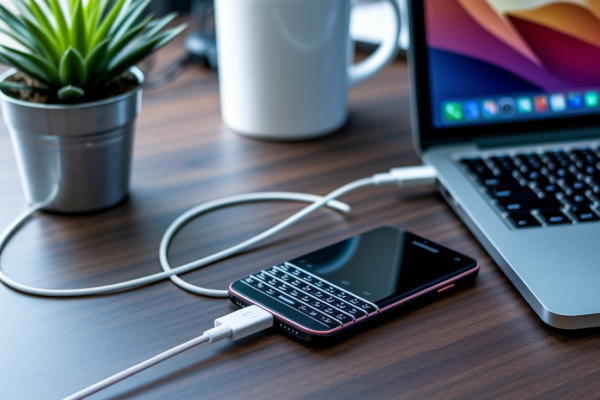
Think your BlackBerry data is stuck in the cloud?
It doesn’t have to be.
Both BBOS devices (Bold, Curve) and BlackBerry 10 phones (Z10, Q10) can be backed up entirely offline over USB, using BlackBerry Desktop Software for BBOS and BlackBerry Link for BB10, with no BlackBerry ID required for the basic backup.
This guide shows how to make local .ipd/.bbb backups, copy media and documents manually, and spot what app data won’t be preserved, so you can keep your backups private and usable.
The Short Answer for Private BlackBerry Backups Stored Locally
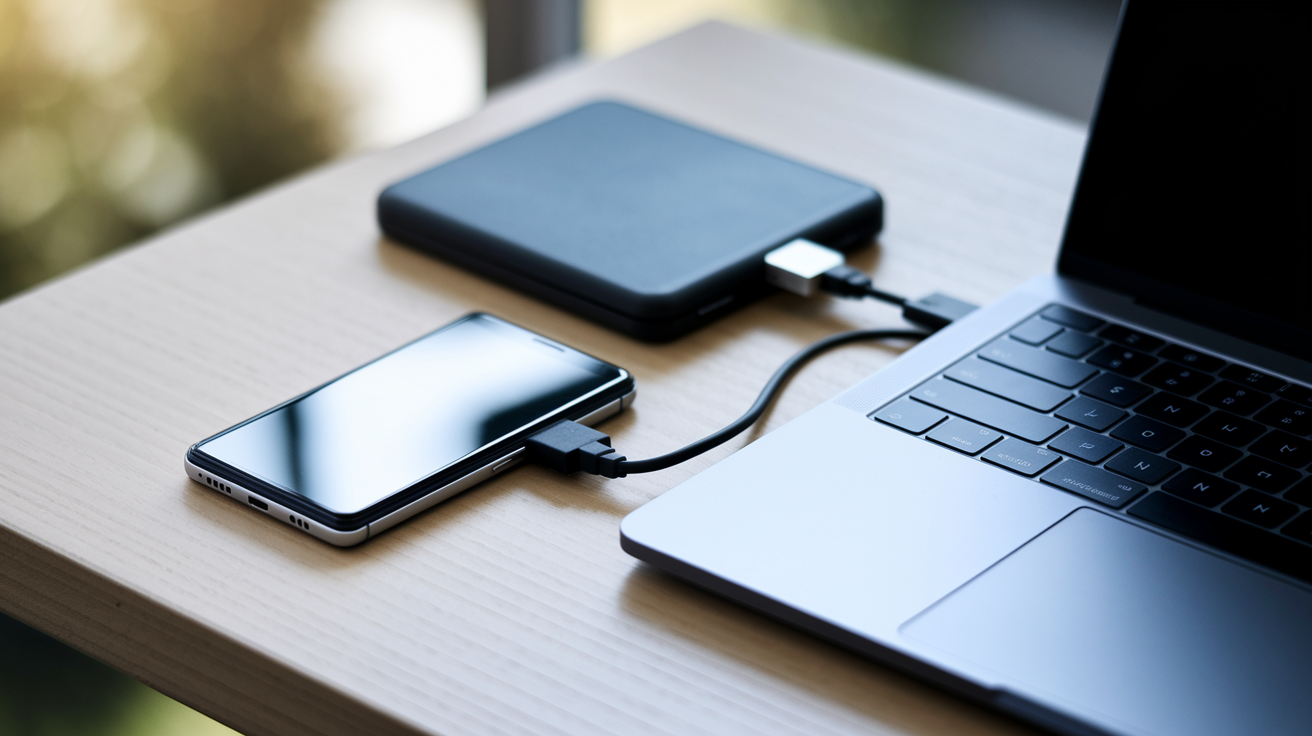
Both BBOS and BlackBerry 10 can be backed up entirely offline, over USB, without anything touching cloud storage. Got a legacy BBOS phone like the Bold or Curve? You’ll need BlackBerry Desktop Software installed on a PC or Mac. For BlackBerry 10 devices, BlackBerry Link handles the equivalent job. Neither requires a BlackBerry ID for the basic backup process, and neither sends your data anywhere except the folder you choose on your own computer.
It’s worth knowing the difference between three things people lump together: a device-data backup (what Desktop Software or Link creates), a manual file copy (dragging photos or documents off the phone through USB storage), and an app-package dump (pulling installation files like COD or BAR packages). Package dumping preserves the app itself, not your saved logins, settings, or private data inside it. Backup coverage has real limits on both platforms. We’ll get into exactly what’s missing and why in the next section.
- Identify whether the handset runs BBOS or BlackBerry 10.
- Install the matching desktop utility.
- Connect and unlock the handset over a data-capable USB cable.
- Create a local backup, then copy accessible media and documents manually.
- Duplicate the completed backup and manual files to disconnected external storage.
| Device Platform | Primary Offline Method | Typical Output | Best Supplemental Copy |
|---|---|---|---|
| BBOS | BlackBerry Desktop Software | .ipd or .bbb file | Manual media/document copy via USB |
| BlackBerry 10 | BlackBerry Link | .bbb file | Manual media/document copy via USB or microSD |
Why BBOS and BlackBerry 10 App Data May Be Missing From a Local Backup
(((alt-img2)))
A backup file, an installation package, and an exported record are three different things. Mixing them up is where most people run into trouble. Copying a COD file off a BBOS phone, or a BAR file off a BlackBerry 10 device, gives you the app’s installer. It doesn’t give you the app’s saved logins, its private database, its cached files, or anything you typed or generated while using it. Reinstall that COD or BAR later and you’re getting a fresh copy of the app, not the version you had configured with your settings intact.
What Desktop Software, Link, manual copying, and any third-party extraction tool can actually reach depends on sandbox permissions, encryption, and app-specific backup rules. Some apps declare what’s allowed to be backed up and what isn’t. Enterprise-managed phones add another layer: a BES-controlled work space can block backup tools from touching work data entirely, regardless of what method you use. So even a flawless, fully completed backup can simply skip categories that the app or the enterprise policy decided to wall off.
BlackBerry 10’s Android runtime app support adds its own wrinkle. An Android app installed through the runtime has its package (similar to an APK) and a separate runtime database or private storage area where its actual data lives. Backing up the package tells you nothing about what’s inside that runtime storage, and the two aren’t interchangeable. Trying to preserve an Android app’s login state or saved content on BlackBerry 10? The package alone won’t do it.
Credentials, license tokens, and cached authentication data are often tied to the specific device, the account that activated it, the OS build, or even the exact app version. That means a technically successful backup might restore fine on the same phone but fail to properly reauthorize an app on replacement hardware or a different OS version. Extraction tools can often pull out readable records, contacts, messages, and similar data for reference or migration purposes, but that’s different from guaranteeing those records will slot back into a working app installation.
Creating a BBOS IPD or BBB Backup With BlackBerry Desktop Software
(((alt-img3)))
For legacy BBOS devices such as the BlackBerry Bold 9788, BlackBerry Desktop Software remains the standard tool for a full local backup, and it keeps everything on your computer rather than any online account.
- Install the compatible BlackBerry Desktop Software release on the PC or Mac.
- Close other phone-management utilities.
- Connect the BBOS handset with a reliable data-capable USB cable.
- Unlock the handset and enter its device password if requested.
- Open Backup & Restore.
- Select a full backup for the broadest coverage or a custom backup for chosen databases.
- Choose a local folder with adequate free space.
- Create the .ipd or .bbb file and wait for completion before disconnecting.
- Record the device model, PIN, OS version, date, and backup type in the filename or an accompanying text file.
Desktop Software’s Backup & Restore tool can capture messages, organizer information like calendars, tasks, and memos, fonts, saved searches, and browser bookmarks, depending on your software and platform version. It’s good practice to run this backup before any device software update, since an interrupted or failed update is one of the more common ways BBOS users lose data. Once the file exists, confirm it in the destination folder, keep any completion log Desktop Software shows you, and copy the finished .ipd or .bbb file to an external drive that stays disconnected from the network. For device-specific guidance, Desktop Software’s in-app Help covers version differences, and there’s a BlackBerry Bold 9788 backup and restore reference worth chec
Final Words
Both BBOS and BlackBerry 10 can be backed up locally over USB using BlackBerry Desktop Software (for BBOS) or BlackBerry Link (for BB10). Create the desktop backup, then copy media and documents manually; app packages and developer extracts are separate.
We ran through step-by-step backups, app-dumping tools, SFTP developer workflows, troubleshooting, verification, and when to get specialist help. Test your copies and keep at least two offline versions.
If you value privacy, backing up bbos and blackberry 10 app data without cloud is achievable with a good cable, the right app, and regular checks. You’ll be glad you did.
FAQ
Q: How to Backup an entire phone to cloud?
A: Backing up an entire phone to the cloud uses the platform service: Android via Google Drive, iPhone via iCloud. Enable backups in Settings, pick data categories, confirm enough cloud storage and Wi‑Fi before starting.
Q: Is swift backup free?
A: Swift Backup provides a free app with basic manual backups; Pro features—scheduled backups, cloud uploads, and full restores—require a paid key. Some app-data restores also need root or ADB access.
Q: Do I need to Backup app data?
A: Backing up app data is recommended when you want to preserve settings, messages, and progress; without it, reinstalling or migrating often loses locally stored app data, so back up before resets or moves.
Q: How do I transfer all my apps and everything to my new phone?
A: Transferring all apps and data uses built-in tools: Android’s Google restore, Apple’s Quick Start/iCloud, or desktop backups for legacy devices. Back up the old device first, then follow the platform’s restore prompts on the new phone.