BlackBerry OS Version: Quick Device Compatibility Check
By atiflatif
November 15, 2026
Field Notes
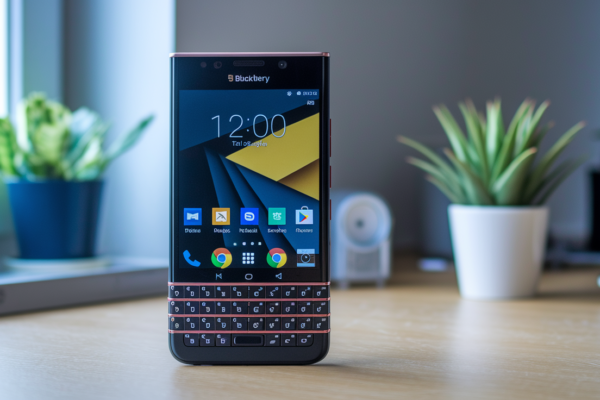
Think your BlackBerry will run every app? Probably not.
Start by getting the exact model and the full software string, including the OS family (legacy BlackBerry OS, BlackBerry 10, Android, or PlayBook OS), because that alone tells you most compatibility limits.
This quick guide shows how to find the model and version in Settings > About, how to read key fields (bundle, OS version, platform or build), and which device families (Bold/Curve/Torch, Z10/Q10/Passport, Priv/KEYone, PlayBook) can run which apps and updates.
Read on to check your device fast.
Your BlackBerry Software Snapshot
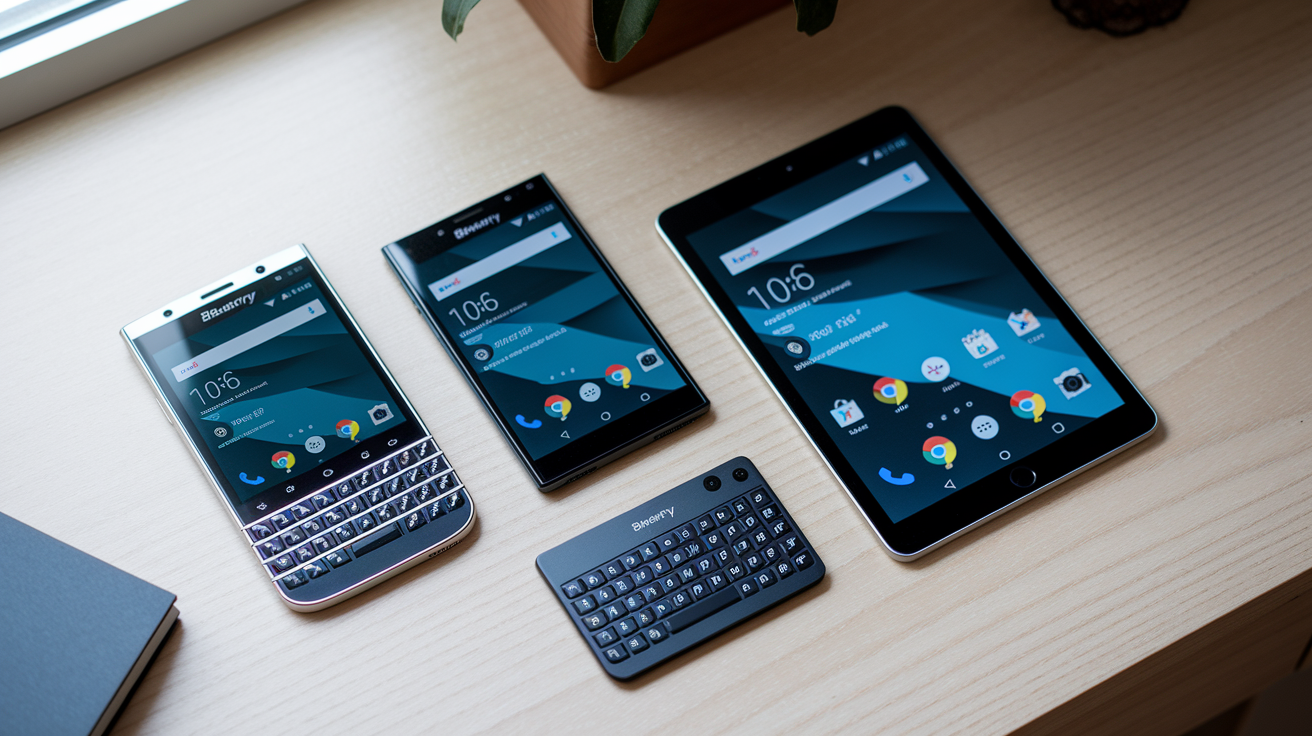
Checking your BlackBerry’s software is really a two-part job. You need the exact model name and the full version string, but honestly, just knowing the OS family (BlackBerry OS, BlackBerry 10, Android, or PlayBook OS) already tells you a lot about what your device can and can’t do.
Here’s the fastest way to find that info:
- Open Settings or Options.
- Select About, About Phone, or Device Information.
- Note the exact model and complete software version shown.
- Use the quick-result table below to get a read on your device’s likely compatibility limits.
| Device Family | Universal Menu Path | Likely App Limitation | Likely Update Limitation | Preliminary Result |
|---|---|---|---|---|
| Legacy BlackBerry OS devices | Options > About | Native BBOS apps only, no full Android support | Limited or ended official updates | Restricted to legacy app ecosystem |
| BlackBerry 10 devices | Settings > About | Native BB10 apps plus limited Android runtime support | No current mainstream OS upgrade path | Functional but frozen at BB10 |
| Full Android BlackBerry devices | Settings > About Phone | Standard Android compatibility (version, API, Google Play Services) | Depends on vendor and carrier support timeline | Treat like a mainstream Android phone |
| BlackBerry PlayBook | Settings > About | Tablet-specific apps only | PlayBook OS updates only, no BB10 or Android path | Isolated tablet ecosystem |
That’s your starting point. For exact field names, screenshots, and navigation by generation, check the model-specific breakdown below. And once you’ve got your version string written down, the detailed compatibility chart further on will confirm exactly where your device stands.
Model-Specific BlackBerry Menu Paths and Version Fields
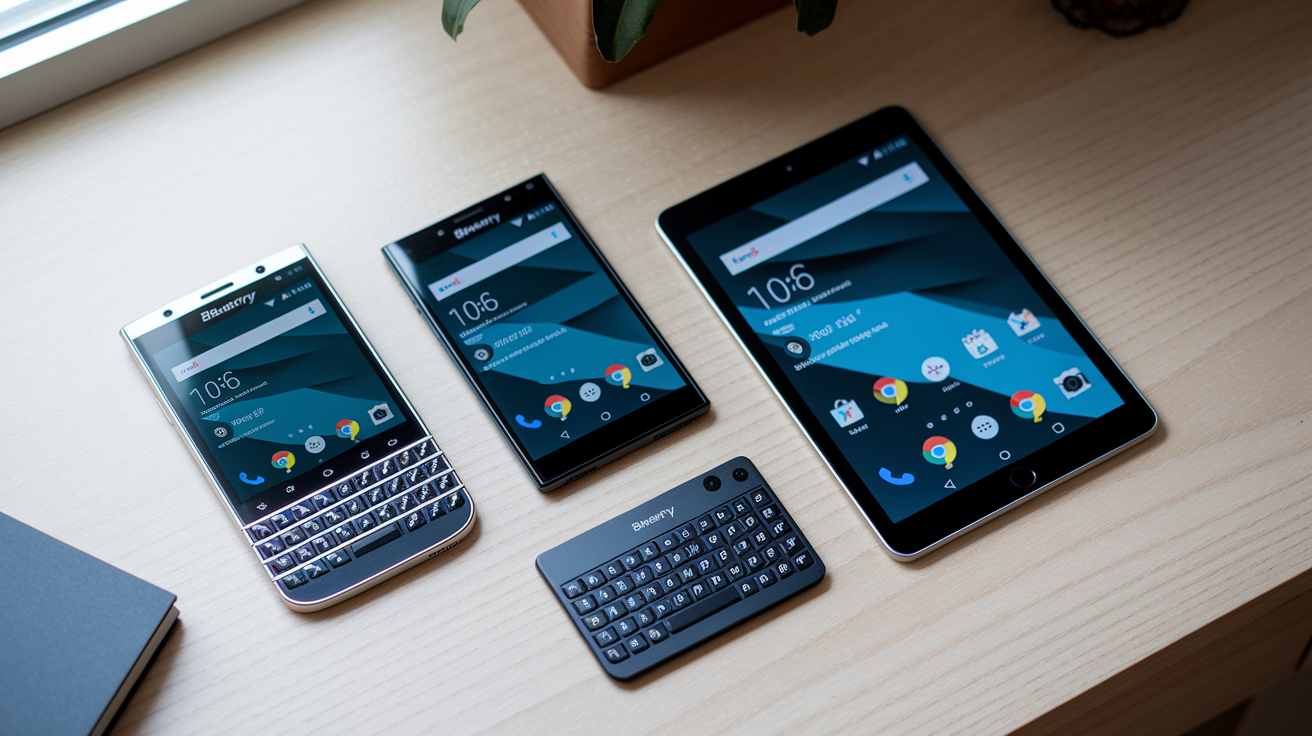
Don’t just jot down the first number you see. Depending on your device’s generation, the About screen packs in several fields, and you’ll want all of them if you’re troubleshooting an app issue or reaching out to support later.
Bold, Curve, and Torch
On these legacy BlackBerry OS devices, go to Options > About. You’ll see a dense string that looks something like “Bundle 1737 (v7.1.0.580, Platform 5.1.0.429).”
Here’s how to read it. The bundle number identifies the specific carrier release package, the OS version (v7.1.0.580 in this example) is the actual BlackBerry OS build, and the platform number (5.1.0.429) relates to lower-level radio and hardware functions, sometimes called the baseband.
Wording and menu placement shift a bit across BlackBerry OS 5, 6, and 7. Some Curve and Bold models tuck this under Options > Device > About Device Versions instead of a single About screen, so don’t panic if the first menu you try doesn’t show it right away.
Z10, Z30, Q5, Q10, Passport, Classic, and Leap
These BlackBerry 10 devices use Settings > About. On some builds, you’ll need to tap a category dropdown and select Software or OS to see the right fields.
Look for the model name, the BlackBerry 10 OS version (typically somewhere in the 10.0 through 10.3.3 range), and a separate software release number. The Passport and Classic sometimes list the carrier bundle separately from the OS version, so check both before assuming you’ve got the full picture.
Priv, DTEK50, DTEK60, KEYone, and KEY2
These are full Android devices. Head to Settings > About Phone or Settings > System > About Phone, depending on which Android version you’re running.
Capture the model number, Android version, build number, Android security patch level, and, if you’re troubleshooting with support, the kernel version or baseband details too. This matters a lot if you’re filing a ticket about a security update that hasn’t shown up yet, since support teams usually ask for the patch level specifically, not just the Android version.
(((alt-img3)))
BlackBerry PlayBook
On the PlayBook, go to Settings > About and note the tablet model along with the PlayBook OS version number.
Worth saying plainly: PlayBook OS details aren’t BlackBerry 10 phone details, even though both came out of the same company around the same era. Don’t try to cross-reference a PlayBook version against a BB10 phone compatibility list. They’re separate systems, with separate app stores and separate update paths.
(((alt-img4)))
BlackBerry Models, OS Families, and Compatibility Limits
(((alt-img3)))
Before you look at the chart, it helps to know what each piece of your version string actually means. The model tells you the physical hardware. The OS family (legacy BlackBerry OS, BlackBerry 10, or Android) tells you the broad software environment. The OS release and build number pin down the exact software revision installed. And the platform or radio version relates to lower-level hardware and network functions, like how your device talks to cell towers, separate from the main operating system layer.
Two devices that look nearly identical on the sh
Final Words
Get the exact model and full build string. OS family gives a quick compatibility clue, but the model and complete version decide app and update eligibility.
This guide showed where to find About screens, model-specific menu paths, the compatibility matrix, decision checklists for apps/updates/carriers, fallbacks when About is inaccessible, recovery steps, post-update verification, and escalation guidance for identity conflicts.
For clear, step-by-step reassurance on how to check blackberry os version and compatibility by device model, follow the About-screen steps and the model chart, and you’ll be able to choose the right path with confidence.
FAQ
Q: How do I check my phone OS version?
You check your phone OS version from the About screen: legacy BlackBerry use Options > About; BlackBerry 10 use Settings > About (Software/OS); Android BlackBerry use Settings > About Phone or System > About Phone.
Q: How to check if BlackBerry is original or fake?
Checking if a BlackBerry is original or fake requires comparing the About-screen model and build with the chassis/battery label, verifying IMEI/TAC or serial online, inspecting firmware and hardware quality, and confirming with carrier or BlackBerry Support.
Q: Can I still use a BlackBerry in 2026?
You can still use a BlackBerry in 2026, but it depends on model and OS family: full-Android models (Priv, KEYone, KEY2) have the best app support; BlackBerry 10 or legacy BBOS devices face app, update, and security limits.
Q: Are old blackberrys worth anything?
Old BlackBerrys are worth something depending on model, condition, and demand; working full-Android or rare/mint collector units command higher prices, while common legacy models in used condition typically sell for low amounts on resale sites.