BlackBerry 10 Backup and Restore Made Simple
By Article Editor
November 18, 2026
Field Notes
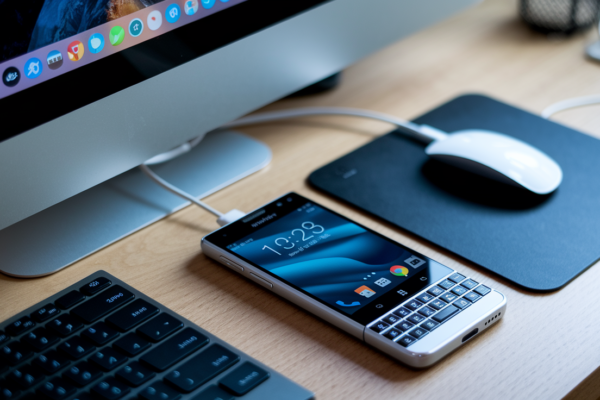
Think backing up your BlackBerry 10 is too risky or too confusing to bother?
Using BlackBerry Link on a Windows or macOS desktop, you can make and restore .bbb backups safely and predictably.
This guide walks you through the exact quick-start steps to create a .bbb file, restore it, and avoid common pitfalls (like unplugging mid-transfer or using the wrong installer).
By the end you’ll know which Link build to grab, how to confirm compatibility, and the simple checks to do before and after a restore.
Quick-Start Steps for Creating and Restoring a .bbb Backup
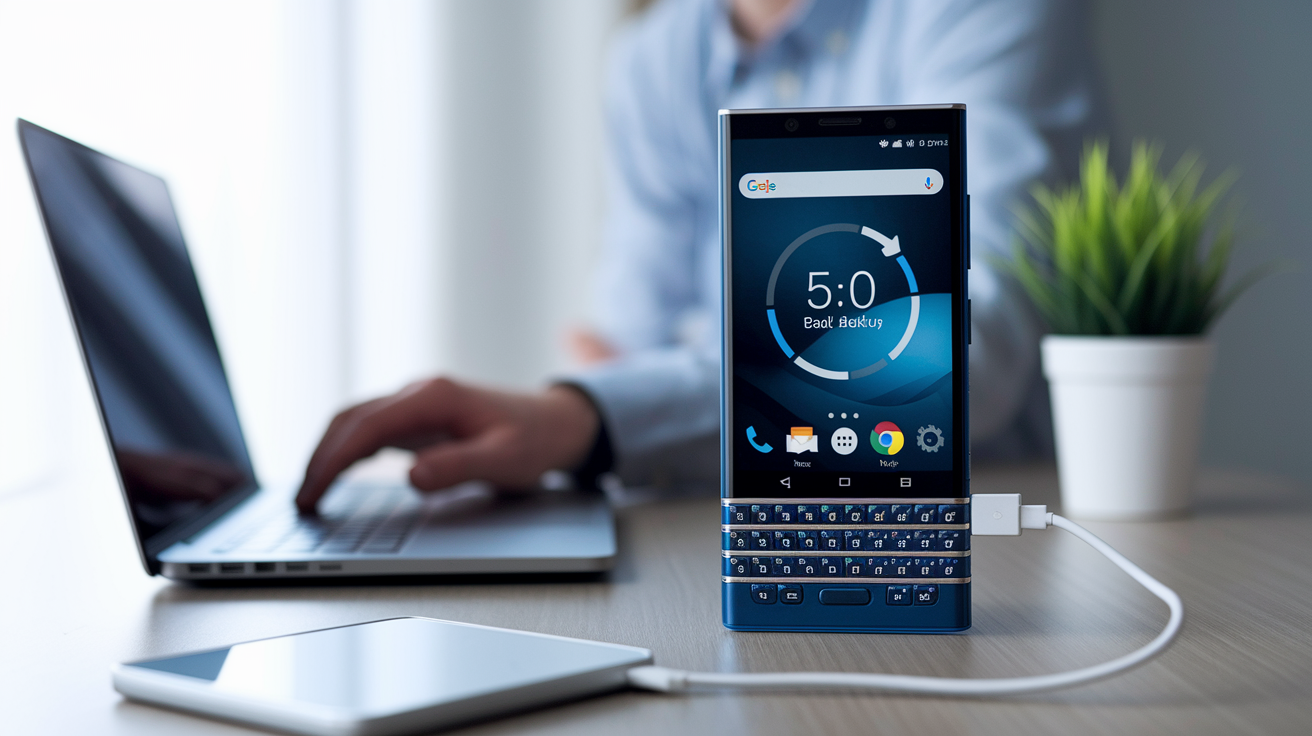
Before anything else, you’ll need BlackBerry Link installed on your computer. It’s the official desktop app for BlackBerry 10 backups, and it’s what creates and reads the .bbb files this whole process depends on. If an approved download link is available at publishing time, it belongs right here, along with basic install guidance. Skip unverified mirrors. What actually works depends on your Link release, your desktop OS, your drivers, and your security settings. So if you’re running a current Windows or macOS build, confirm compatibility before you reset or change anything on the phone.
A few things need to be true before you start. Your phone should be unlocked, charged to at least 50%, and connected through a cable you trust (not the frayed one in your junk drawer). Your computer needs free space equal to the backup’s estimated size plus at least 1 GB, just to be safe.
Here’s the full process, backup first, restore second:
- Connect your unlocked BlackBerry 10 phone to the computer with a USB cable.
- Open BlackBerry Link on the desktop.
- Select your device once Link detects it.
- Open Back Up & Restore from the main screen.
- Choose the backup categories and destination folder you want.
- Click Back Up Device to start the process.
- Wait for Link to report that the backup finished.
- Open Restore Device from the same screen.
- Select the
.bbbsnapshot you want to restore from. - Choose which supported content to restore.
- Confirm the overwrite warning (this replaces current device data).
- Click Restore and let it run.
- Wait for Link to confirm the restore is complete before disconnecting.
Expect the whole thing, backup or restore, to take anywhere from 3 to 30 minutes. A typical 0.5 to 2 GB backup usually lands in the 5 to 20 minute range.
Don’t unplug the USB cable, close Link, let the computer sleep, or restart either device while a progress bar is showing. That’s how you end up with a corrupted file or a stuck phone. Once it’s done, confirm the phone boots up normally. Deeper data checks come later.
BlackBerry 10 Desktop Tool and Version Compatibility
(((alt-img2)))
BlackBerry Link is the right tool for BlackBerry 10 devices, full stop. It’s built specifically to create and restore .bbb backups on models like the Z10, Q10, Z30, Passport, and Classic. This is distinct from BlackBerry Desktop Manager (versions 4.1 through 5.0) and BlackBerry Desktop Software (versions 6.0 through 7.0), which were designed for older BlackBerry OS devices and their .ipd backup format. If you’re coming from an older BlackBerry and trying to figure out which tool applies to you, the device generation is your answer.
BlackBerry Blend is a separate piece of the puzzle. It handles desktop access to messages, files, and notifications in real time, but it doesn’t do device backups. Don’t confuse the two when you’re setting things up.
| Device or Backup Source | Appropriate Desktop Tool | Backup Format | Desktop OS Boundary | Restore Limitation |
|---|---|---|---|---|
| BlackBerry 10 devices (Z10, Q10, Z30, Passport, Classic) | BlackBerry Link | .bbb | Depends on Link release and OS version | Some categories vary by Link build |
| Older BlackBerry OS devices | BlackBerry Desktop Manager / Desktop Software | .ipd | Windows XP, Vista, 7 (documented contexts) | Not all databases transfer to BB10 |
| .bbb archives | BlackBerry Link | .bbb | Current Windows / macOS (varies by release) | Restore scope depends on backup content |
| .ipd archives | Legacy Desktop Manager / Desktop Software | .ipd | Mostly older Windows releases | Partial compatibility with BB10 only |
| BlackBerry Blend | Not a backup tool | None | Varies by release | Does not create device backups |
Windows XP, Vista, and 7 only come up here because they’re part of the documented history for the legacy tools. Whether BlackBerry Link runs well on Windows 10, a later Windows release, or a current macOS version depends entirely on which Link build you can find, whether USB drivers match your system, your architecture, and your OS’s own security restrictions. There’s no blanket guarantee of support on modern platforms, so check before you commit to anything irreversible.
Installing BlackBerry Link on Windows and macOS
(((alt-img3)))
Grab the latest compatible release of BlackBerry Link before you connect your phone to anything. Installer size runs roughly 30 to 120 MB depending on your platform and the specific release. Only use a verified official or properly preserved vendor download page if one is available at the time you’re reading this. No mirror site should be treated as official, no matter how convincing it looks. Whoever is publishing this should show the product name, version number, file size, publisher, and digital signature status right next to any approved download link.
Installing BlackBerry Link on Windows
Run the installer as an administrator. Accept the license terms, let it install the required USB drivers, and finish the setup wizard. If it asks for a restart, give
Final Words
You ran the quick-start 13-step flow: install BlackBerry Link, connect an unlocked and charged phone by USB, choose Back Up Device, and later pick Restore Device from the selected .bbb snapshot. Keep the cable connected, prevent the computer from sleeping, and wait for Link to report completion before disconnecting.
Confirm the phone boots normally, open sample contacts, messages, calendar entries, and media, and retain at least three snapshots for safety.
Following this guide makes blackberry 10 backup and restore using desktop software straightforward and reliable. Back up before major changes, and you’ll be ready.
FAQ
Q: How do you factory reset a BlackBerry?
A: Factory resetting a BlackBerry erases personal data and restores factory settings; on BlackBerry 10 go to Settings > Security and Privacy > Storage Management > Erase. Back up first and keep the device charged.
Q: How to restore old backup data?
A: Restoring old backup data uses BlackBerry Link: connect your unlocked BlackBerry 10 via USB, open Link, choose Restore Device, select the .bbb snapshot and desired categories, confirm overwrite, click Restore, and wait for completion.
Q: Can I still use a BlackBerry in 2026?
A: You can still use a BlackBerry in 2026, but functionality depends on model (Z10, Q10, Passport, Classic), BlackBerry 10 support, carrier services, app availability, and desktop-tool compatibility; expect limited vendor support.
Q: How to transfer data from BlackBerry to laptop?
A: Transferring data from BlackBerry to a laptop uses BlackBerry Link backups or a USB file transfer: connect the unlocked phone via USB, run a Link backup (.bbb) or copy photos/documents directly through the computer’s file manager.