

Ever wondered if setting up your iPhone’s eSIM could be as simple as snapping a quick photo? In this guide, we break down three easy methods to get your digital connection up and running in minutes. Imagine it like launching a fresh new game, fast, smooth, and stress-free.
Maybe you’re calling your wireless provider or transferring settings from an older iPhone. Either way, there’s a method here that fits your style. Stick around and check out tips that make what seems tricky feel like a snap.
Step-by-Step Guide to Setting Up eSIM on Your iPhone
-
Carrier Activation
Start by giving your wireless provider a call or visiting their website to ask for your eSIM activation. They may send you an activation code or a QR code, whichever they prefer. Then, open your iPhone’s Settings, tap Cellular (or Mobile Data), and select Add eSIM. From there, simply scan the QR code or type in the details exactly as they gave you. This route works best if your carrier supports digital activations. -
Quick Transfer from Another iPhone
If you still have an older iPhone with an active eSIM, you can use Apple’s Quick Transfer feature. Just place both devices near each other and follow the on-screen instructions to copy your settings over. It’s a breeze and cuts down on manual entry, perfect if you’re switching devices and want everything just right. -
QR Code Activation
For a super straightforward setup, use QR Code Activation. Head over to Settings, then Cellular, and tap Add eSIM. Use your iPhone’s camera to scan the QR code your carrier provided. Just a heads up: if you’re traveling, be sure you’re tapping into the correct mobile data source to keep your connection steady. Fun fact, many travelers say scanning a QR code abroad is almost as quick as unlocking your phone! -
Manual Setup
Sometimes your carrier might provide you with detailed activation information, like an SM-DP+ address and an activation code. In these cases, pick Manual Setup under your Cellular settings. Enter the details exactly as given. This method gives you a bit more control over the process, ensuring everything lines up perfectly. -
Mobile App Activation
Many carriers now offer a mobile app to simplify the whole process. With apps like those from Holafly, you can download and install your eSIM profile directly to your iPhone. Just follow the in-app instructions and you’ll be up and running with minimal fuss.
Follow these steps and you’ll enjoy a smooth, reliable eSIM activation every time.
3 esim iphone Tips for Effortless Setup

-
Check Your iPhone Model
Before you dive in, make sure your iPhone supports eSIM. Any model from the iPhone XR onward can handle it, and the latest ones, like the iPhone 14 and iPhone 15 in the USA, work solely on eSIM. So if you're rocking an iPhone XR, you're already set for a smooth setup. -
Make the Most of eSIM Storage
Your iPhone can save up to 20 eSIM profiles, even though you can only use one or two at a time. This clever setup means you can effortlessly switch between a personal plan and a travel plan without swapping out any physical SIM cards. Think of it as carrying a mini passport for your various data plans. -
Use Dual Connectivity for Flexibility
Modern iPhones let you mix things up by using a physical nano-SIM alongside an eSIM, or even dual eSIM on newer models. This handy flexibility allows you to decide which plan is best for data, voice, or messaging right from Settings > Cellular. It's like having two phones in one, ensuring your connectivity is always on point.
Setting Up eSIM for International Roaming on iPhone
Before you set off on your next adventure, take a moment to install your eSIM the day before you leave. Doing this ahead of time helps avoid connectivity hiccups when you land and gets you prepped for international roaming. Just open your iPhone’s Settings, go to Cellular or Mobile Data, and tap Add eSIM to load your travel data plan.
Once you touch down, switch your Mobile Data source over to the eSIM right away. Picture this: you step off the plane, pull out your phone, and in a few taps on Mobile Data, you’re connected. If you're still outside your destination area during the QR scan, your physical SIM can fill in for you until you’re ready. Then, when you’re properly in the zone, simply head back to Settings, tap Cellular, and make the eSIM your primary data connection.
Planning ahead with your eSIM also means you can compare roaming data offers from different carriers without the rush. This smart move makes switching between your domestic and international plans a breeze, ensuring you’re in the loop with travel updates and local tips. Enjoy a stress-free trip with a reliable connection every step of the way.
Managing and Switching Multiple eSIM Profiles on iPhone
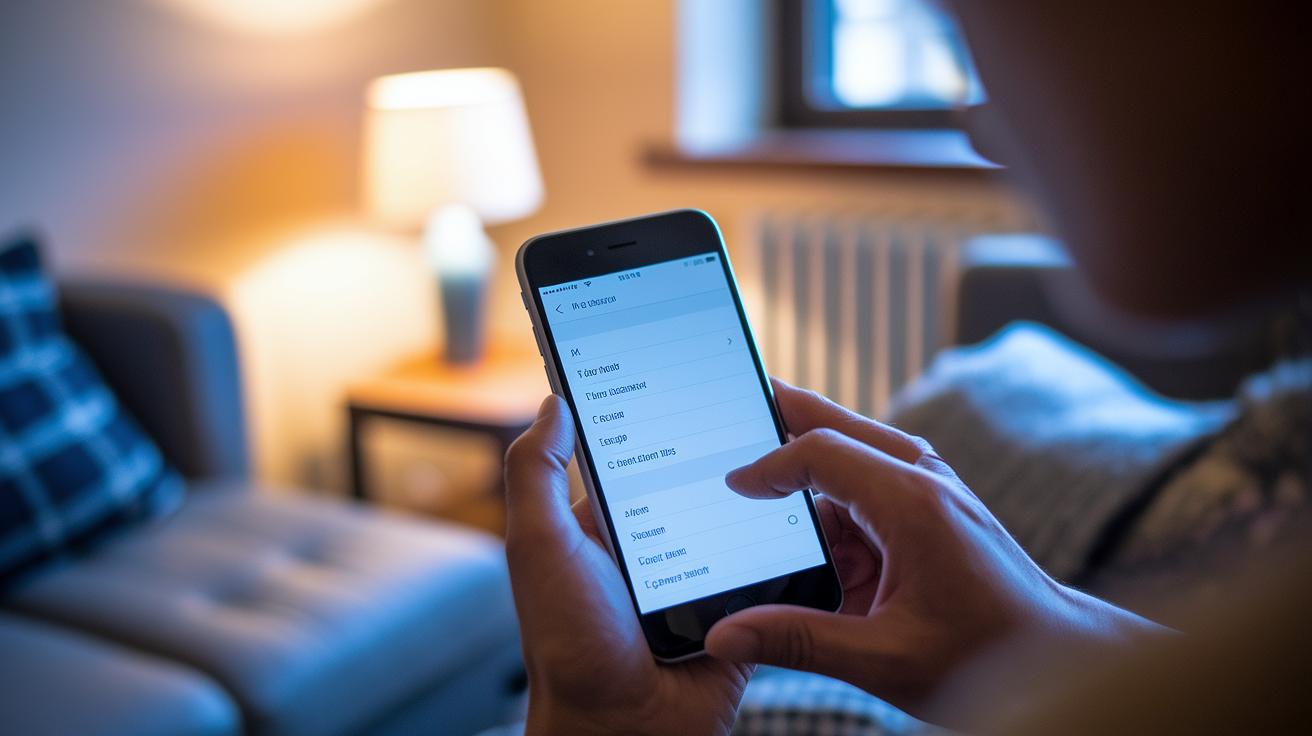
Your iPhone can store up to 20 different eSIM profiles, even though you can only use one or two at once. It’s like keeping a small filing cabinet of plans, Personal, Travel, Work, so you always know which one to pick. Imagine quickly switching profiles with just a couple of taps, and you’re off to the races.
Here’s how to do it:
- Open Settings and tap Cellular.
- Find the eSIM plan you want to use.
- Tap the plan and select Turn On This Line.
Say you have a profile named Travel; one quick tap makes it your main data source when you need it most.
If you’ve got several profiles stored, you can even set one as the default for calls, data, or apps like iMessage or FaceTime. This setup lets you handle your work calls on one line and your data on another, all without swapping out physical SIM cards.
When you need to move your eSIM from one device to another, try Quick Transfer on your iPhone. And if you’re switching from Android, the iOS migration wizard makes the whole process smooth and easy. In other words, your connectivity adjusts with your lifestyle whether you’re at work, traveling, or simply enjoying some personal time.
Troubleshooting eSIM Activation Issues on iPhone
Ever had trouble getting your eSIM up and running on your iPhone? Start by checking your active profiles in Settings > Cellular. This quick look helps you see if the eSIM is recognized or if something’s off.
Here’s a simple guide to sort out common issues:
- First, check your eSIM status: Open Settings, tap Cellular, and see all the active eSIM profiles.
- Next, verify your QR code: If you get an error about an invalid QR code because of where you're scanning, try again in your current location. It’s like making sure your compass points true north.
- Then, confirm your carrier info: If the information (called SM-DP+ details) is missing, reach out to your carrier to get the correct data.
- Restart your device: A quick restart can often clear up minor hiccups.
- Update your iOS: Ensure your phone is on the latest iOS version to avoid any compatibility issues.
- Lastly, remove and reinstall: Go to Settings > Cellular > Remove Cellular Plan, and walk through the setup process again.
Following these steps can help you catch common issues like network glitches or scanning errors. A little troubleshooting can go a long way in keeping your connection smooth and steady.
Final Words
In the action, this post broke down five ways to set up your esim iphone, from scanning a QR code to using carrier apps. We walked through activating your eSIM with simple steps, checking device compatibility, and even sorting out international roaming setups.
Each part showed how to manage multiple profiles and tackle common activation issues. Our guide makes it easy for anyone to get connected smoothly. Enjoy exploring these methods and have fun using your device with confidence.
FAQ
How can I activate and get an eSIM on my iPhone, including iPhone 11, 13, 14, 15 or when using carriers like T-Mobile in the USA or Europe?
The eSIM activation starts in Settings > Cellular > Add eSIM. Follow steps like scanning a QR code, using a carrier app, or entering details manually for a quick setup on supported iPhones.
What does an eSIM do for an iPhone?
An eSIM serves as a digital SIM, managing your mobile network plan without a physical card. It allows for multiple carrier profiles, quick switching between plans, and dual-line functionality on supported models.
What are the disadvantages of using an eSIM in an iPhone?
The eSIM may limit device switching ease, require extra steps when changing carriers, and sometimes face issues with regional restrictions or network compatibility compared to physical SIM cards.
Which iPhones support eSIM technology?
iPhones from the XR onward support eSIM. Many models, including the iPhone 11, use eSIM alongside a physical SIM, while in the USA, the iPhone 14 and iPhone 15 are exclusively eSIM-based.