

Ever wondered if your AirPods can groove with non-Apple devices? Good news, they work with any Bluetooth gadget, even your Android phone, without any extra apps needed.
In this guide, we'll walk you through the simple pairing process step by step. It’s like connecting the dots, making sure you get that crisp, clear sound on your Android, just as you do with Apple devices.
We’ll also point out a few small differences you might notice. So if you’re curious about getting the best out of your AirPods on any device, stick around, this guide is all about making tech easy and fun.
do airpods work with android: Enjoy Crisp Connection
AirPods work smoothly with any device that has Bluetooth, so yes, they can connect with your Android phone, Windows PC, or tablet. Even though they’re built with Apple in mind, pairing them with Android is super simple.
All you need to do is open the AirPods case with the earbuds inside, press the white button until the LED flashes white, and then open your Android Bluetooth settings to select "AirPods." It’s just like connecting any other wireless earbuds, no extra software required.
Keep in mind, while you’ll get that clear, energetic sound, you won’t have features like Siri or automatic firmware updates that Apple users enjoy. Still, if you’re after a reliable, crisp connection for quality audio, these earbuds are a great pick for your non-Apple device.
Step-by-step setup for AirPods on Android smartphones

Ready to enjoy your favorite tunes on your Android with crisp, clear audio? Here’s how to get your AirPods connected in a few simple steps.
- First, pop both AirPods into the charging case to ensure they’re all set for pairing.
- Open the case and hold down the button on the back until you see the front LED flash white. That flashing light tells you the AirPods are ready.
- On your Android, go to Settings, then tap on Bluetooth & device connection, and make sure Bluetooth is turned on.
- Look for the option that says “Pair new device” or just tap “Scan,” depending on your phone’s display.
- When you see “AirPods” appear on the screen, tap it.
- Wait a moment for your device to show that the AirPods are connected.
- Finally, test it out by playing a song or a podcast. Whether you use one earbud or both, the double-tap function lets you easily play or pause your audio.
Enjoy the smooth, clear sound of your AirPods on your Android phone and rock on with your music!
AirPods features on Android: integration and differences
Features that work
AirPods deliver a smooth experience on Android. The double-tap lets you play or pause your music effortlessly, and this works well on both the AirPods Pro and the second-generation AirPods. Users often mention that the Bluetooth connection is solid and even reaches farther than many earbuds designed for Android devices. By pressing and holding the sensor, you can quickly switch on features like Active Noise Cancellation and Transparency Mode, helping you adjust your listening environment right on the fly.
Even if you’re using just one earbud, you still get mono audio for calls or music so you don’t miss a beat during your busy day. There’s also a neat auto pause and resume feature, remove an AirPod and your audio pauses; put it back in and it resumes. While integration with Android isn’t perfect, the sound stays crisp and clear.
Features that don’t work
Some of the premium functions depend on Apple’s ecosystem and aren’t available for Android users. Siri and other custom voice-assistant features won’t work, so you’ll need to rely on Google Assistant manually. There’s no native battery indicator either, which means tracking battery life requires third-party apps that might not be as seamless.
Spatial Audio can only be accessed through Apple Music on Android, and without head-tracking. Also, features such as automatic pairing or switching via iCloud remain off-limits. Other Apple-exclusive functions like Live Listen, the Ear Tip Fit Test for AirPods Pro, Conversation Boost, Find My integration, and automatic firmware updates have to be managed manually, or simply missed altogether.
Limitations of using AirPods on Android devices
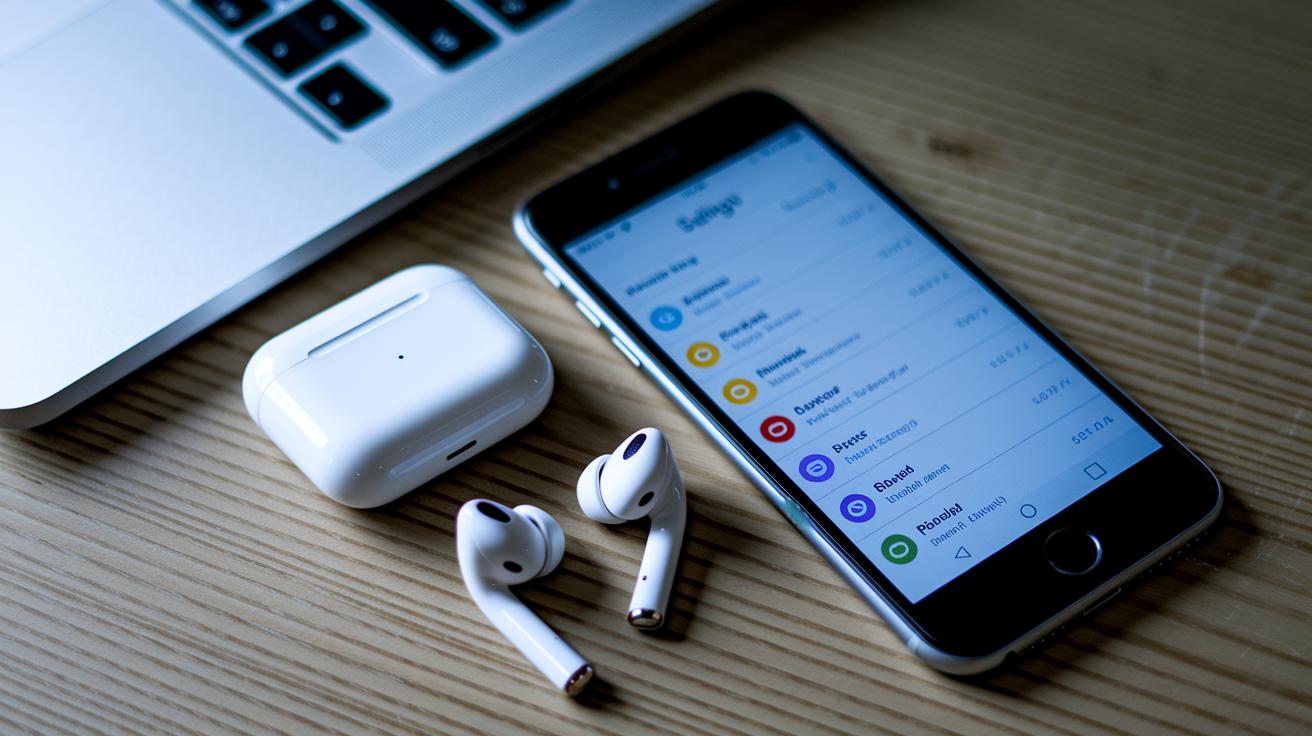
If you're pairing your AirPods with an Android phone, there are a few things you might miss out on. Because AirPods use Apple’s special chips, features like automatic device switching and a smooth firmware update process aren’t available on Android.
Also, if you enjoy Active Noise Cancellation or Transparency Mode, you'll need to press and hold the earbud stem to switch modes since there isn’t an app to handle it. Battery life tracking isn’t built in either, so you'll have to rely on third-party apps for that info. And without built-in ear detection, you won't get auto pause/resume or configurable tap controls.
For more details and workarounds, please check the AirPods features on Android: integration and differences section.
Troubleshooting and optimizing AirPods connections on Android
First, make sure your Android device supports Bluetooth 5.0 or later. Older versions can cause dropped connections and a shorter range, so sometimes a software update or a newer phone can really boost your audio experience.
Next, try clearing your Bluetooth cache. This helps get rid of any old data that might be messing up your connection. Just head to Settings, then Apps, find Bluetooth under your system apps, and clear the cache and data. It’s a simple fix that often smooths out stubborn pairing issues.
Also, don’t forget to disable battery optimization for Bluetooth. Occasionally, power-saving settings can interrupt a steady connection, leading to unexpected disconnects. Adjusting these settings ensures your AirPods stay connected longer and more reliably.
If pairing still isn’t working, try resetting your AirPods. Hold down the case button for about 15 seconds and then try scanning from your phone again. If you need to update the firmware, connect them briefly to an iOS device or Mac before switching back to Android. This little extra step can help keep your settings tuned for the best performance.
Final Words
in the action, this guide takes you through setting up your AirPods on Android, from the quick pairing steps to testing features available on non-iOS devices. We covered how to connect, what functions you can enjoy, and the workarounds for limitations you might face on an Android phone.
The discussion also sheds light on common Bluetooth tweaks and fixes. It’s clear that do airpods work with android, offering a solid wireless audio experience while keeping things simple and reliable.
FAQ
Do AirPods work with Samsung or Android devices?
The compatibility of AirPods with Samsung and other Android devices means they connect via Bluetooth. They deliver quality sound, though iOS-specific features like Siri support and device switching aren’t available.
How do you pair AirPods with an Android device, including Samsung phones?
Pairing AirPods on Android involves opening the case, holding the rear button until the LED flashes, and selecting “AirPods” from Bluetooth settings. This manual process lets you quickly establish a reliable connection.
Why won’t my AirPods connect to my Android device?
AirPods may fail to connect if Bluetooth settings aren’t refreshed, or if a cache issue exists. Resetting the case by holding the pairing button and clearing your device’s Bluetooth cache can help resolve the issue.
Are AirPods worth using with Samsung and other Android devices?
AirPods deliver crisp sound and consistent performance on Android. However, while they work well as Bluetooth earbuds, advanced features like Siri and automatic switching are missing, which might affect overall value.
Do AirPods 4 work with Android devices?
AirPods 4 connect to Android devices like any Bluetooth accessory. They provide excellent audio quality, but without the iOS-exclusive functionalities, they are best used as effective standard wireless earbuds on non-Apple systems.